

Portal GuideHolidays
How to add a holiday
Add a closure date so DealerAI knows your dealership is unavailable.
Adding a holiday tells the AI not to offer appointments on that date and to set the right expectations with customers who reach out while you're closed.
Add a holiday
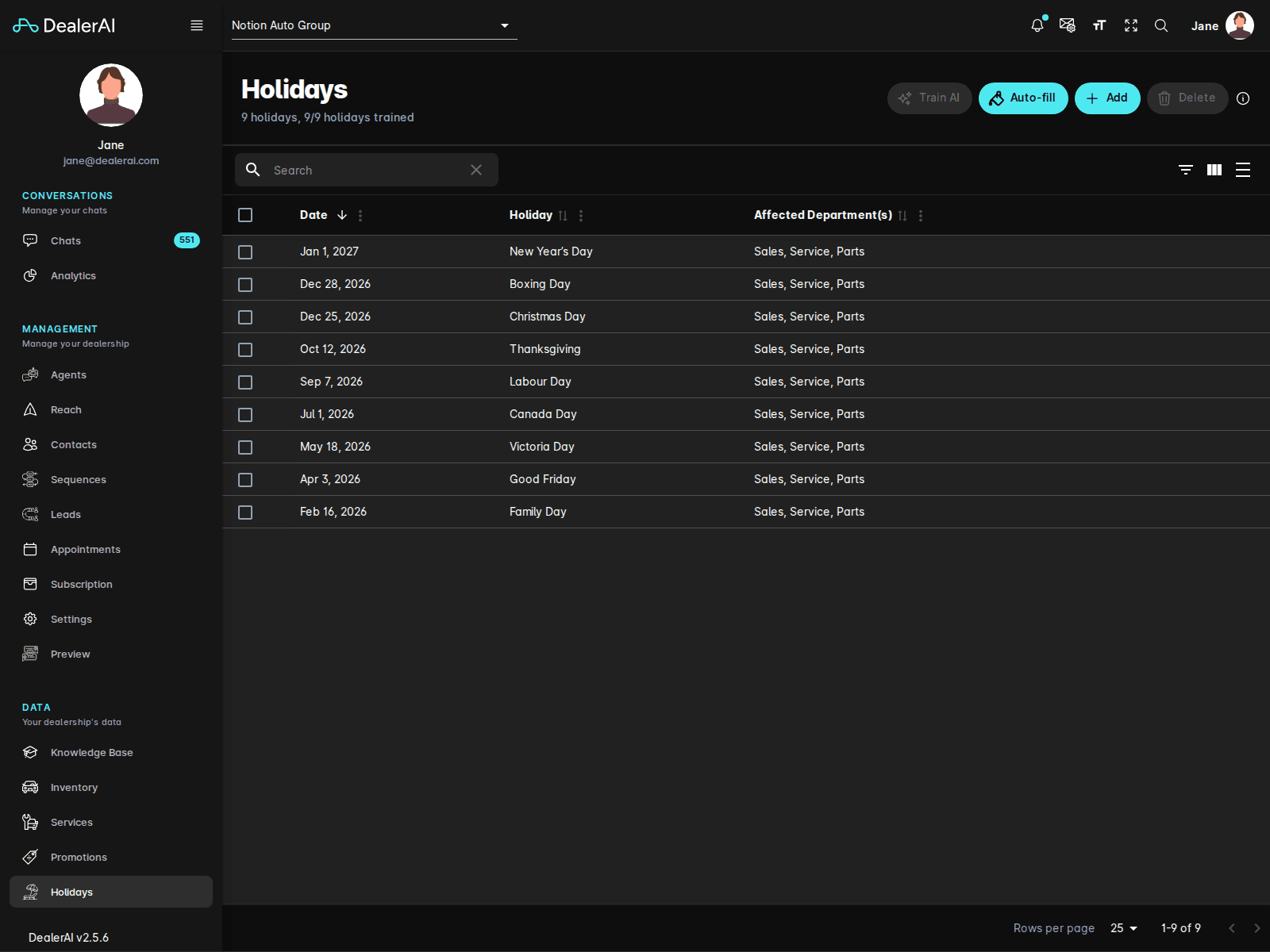
Go to Holidays from the sidebar.
Make sure the correct dealership is selected in the top picker.
Click Add.
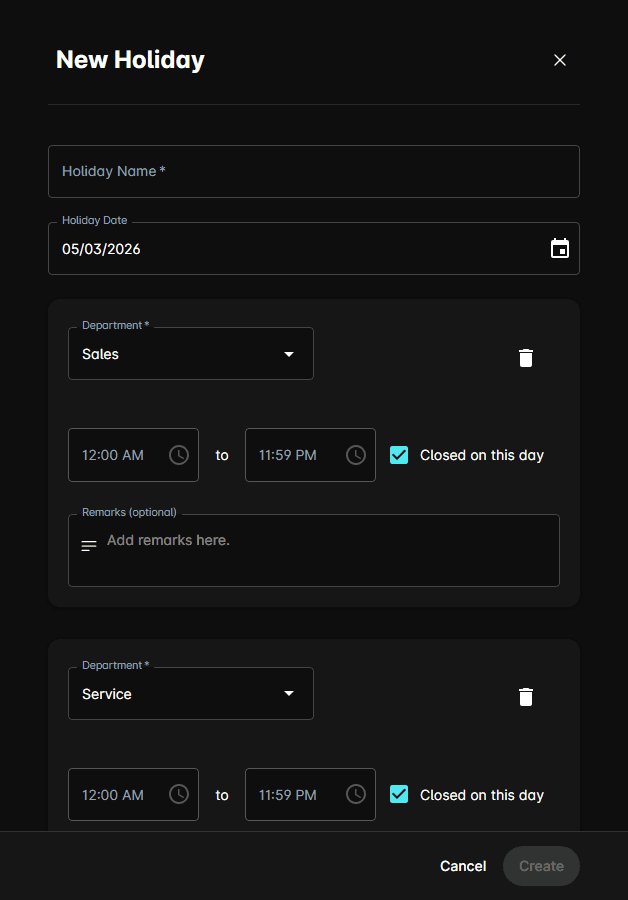
Enter a clear Holiday Name (e.g., "Christmas Day", "Family Day").
Pick the Holiday Date of the closure.
For each department affected, select the Department from the dropdown.
Tick Closed on this day if the department is fully closed, or set opening and closing times for reduced hours.
Optionally add a Remarks note that the AI can share with customers (e.g., "We reopen January 2nd").
Click Add Another Department to repeat for additional departments, if needed.
Click Create.
The new closure appears in the holiday list immediately and takes effect right away.
What changes after adding a holiday
- Appointment booking is disabled for that date — the AI won't offer time slots.
- Customers who message during the closure are told you're closed and given the next opening date if a remark is provided.
- The AI can still take messages and capture lead details for staff to follow up.
Add holidays in advance — ideally for the whole year. The AI uses upcoming closures when proposing appointment times, so a customer asking on December 20th to book on December 25th needs the holiday to already be configured.
Tips
- Use names a customer would recognize. The AI may reference the name in conversations.
- For a partial-day closure (early close), set the opening and closing times on the department section rather than ticking Closed on this day.
- Long shutdowns (e.g., two-week summer closure) can be added as multiple consecutive holidays.
- To quickly populate common statutory holidays, use the Auto-fill button on the Holidays page.