

Xtime integration setup
Connect a dealership's Xtime service scheduling account to DealerAI using a Cox partner invitation and the Xtime Dealer Code.
Connecting Xtime lets DealerAI book service appointments directly into a dealership's Xtime schedule. Setup has two parts: invite the dealership as a partner in Xtime, then link their Xtime Dealer Code to the store in the DealerAI Portal.
Invite the dealership in Xtime
Go to Companies → YOUR_COMPANY → Launch → Partners, where YOUR_COMPANY is DealerAI's
Xtime partner company.
Create an invitation, then send the client the setup instructions along with the invitation code.
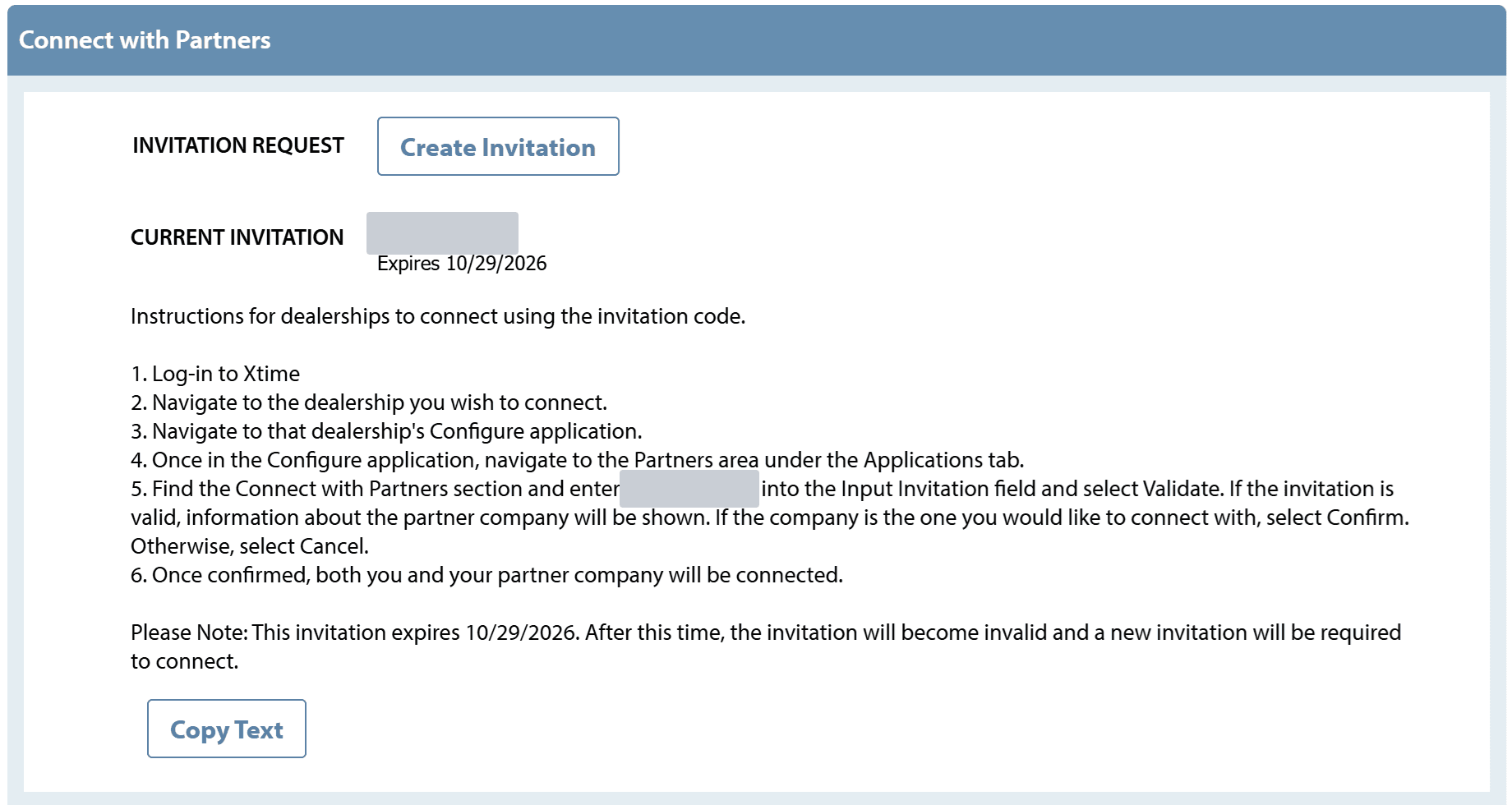
Creating a new invitation code invalidates the existing one. If you re-send an invitation, make sure the client uses the latest code.
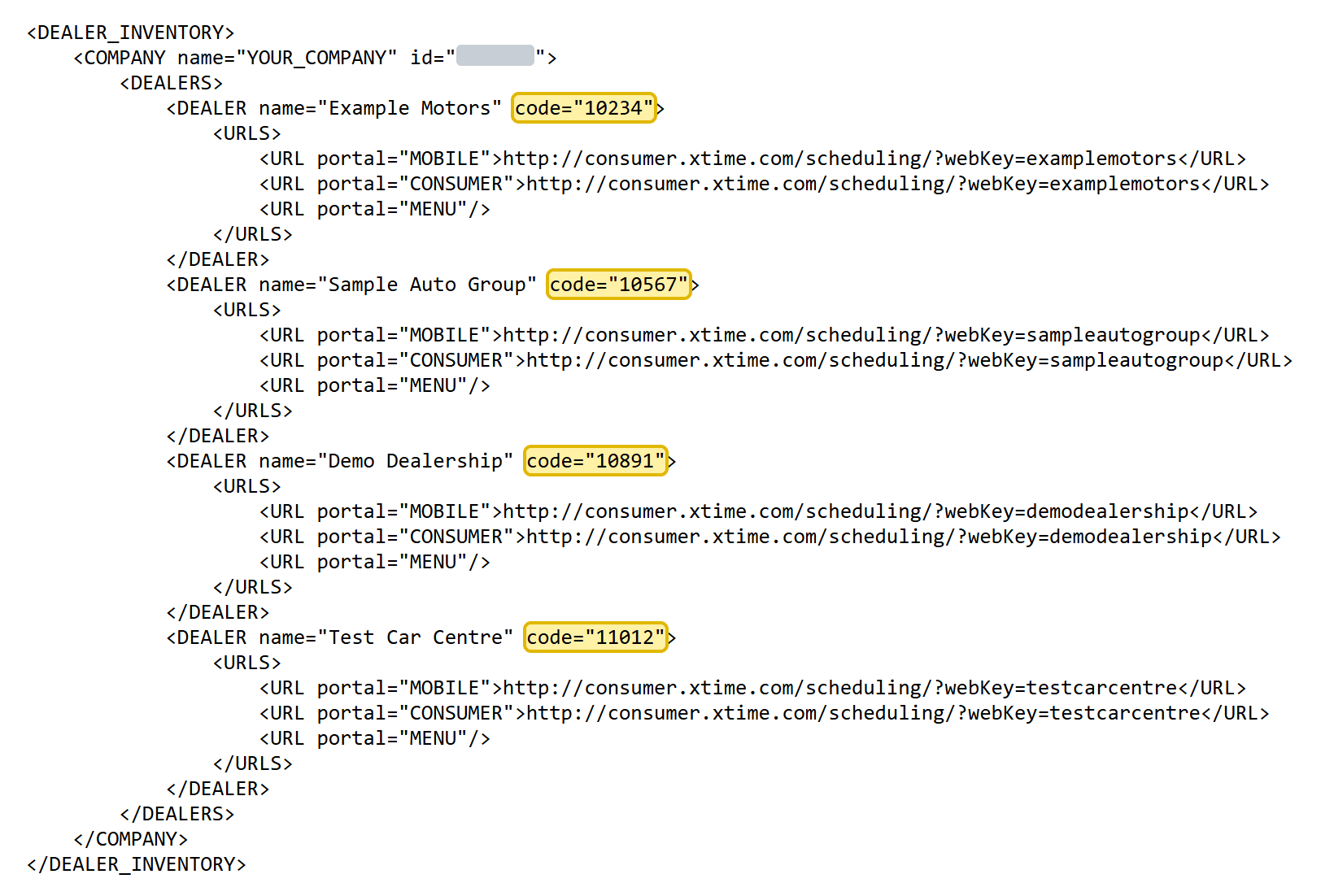
After the client connects, open
https://partner.xtime.com/dealer-links?company=YOUR_COMPANY.
Find the client's DEALER entry by name. Its code value is the Xtime Dealer Code.
Refer to the partner onboarding document for details.
Enable Xtime in DealerAI
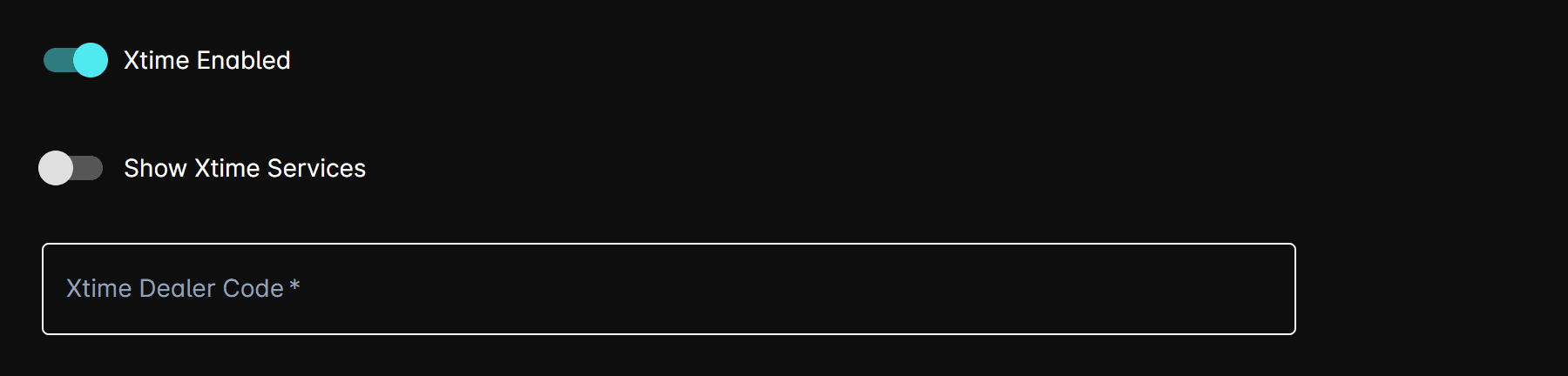
Turn on Xtime Enabled and enter the Xtime Dealer Code.
AI Connector (Claude & ChatGPT)
Connect Claude or ChatGPT to a DealerAI store so an AI assistant can look up inventory, read conversations, manage store information and start follow-up, using your existing portal account.
API Reference
DealerAI Public API — manage inventory, conversations, contacts, promotions, and more.