

How to invite a staff member
Add a new user to your organization, assign their role, and give them access to the right stores.
Invite colleagues to the DealerAI portal so they can join conversations, work leads, and manage your AI configuration. Staff are managed at the organization level.
Invite a user
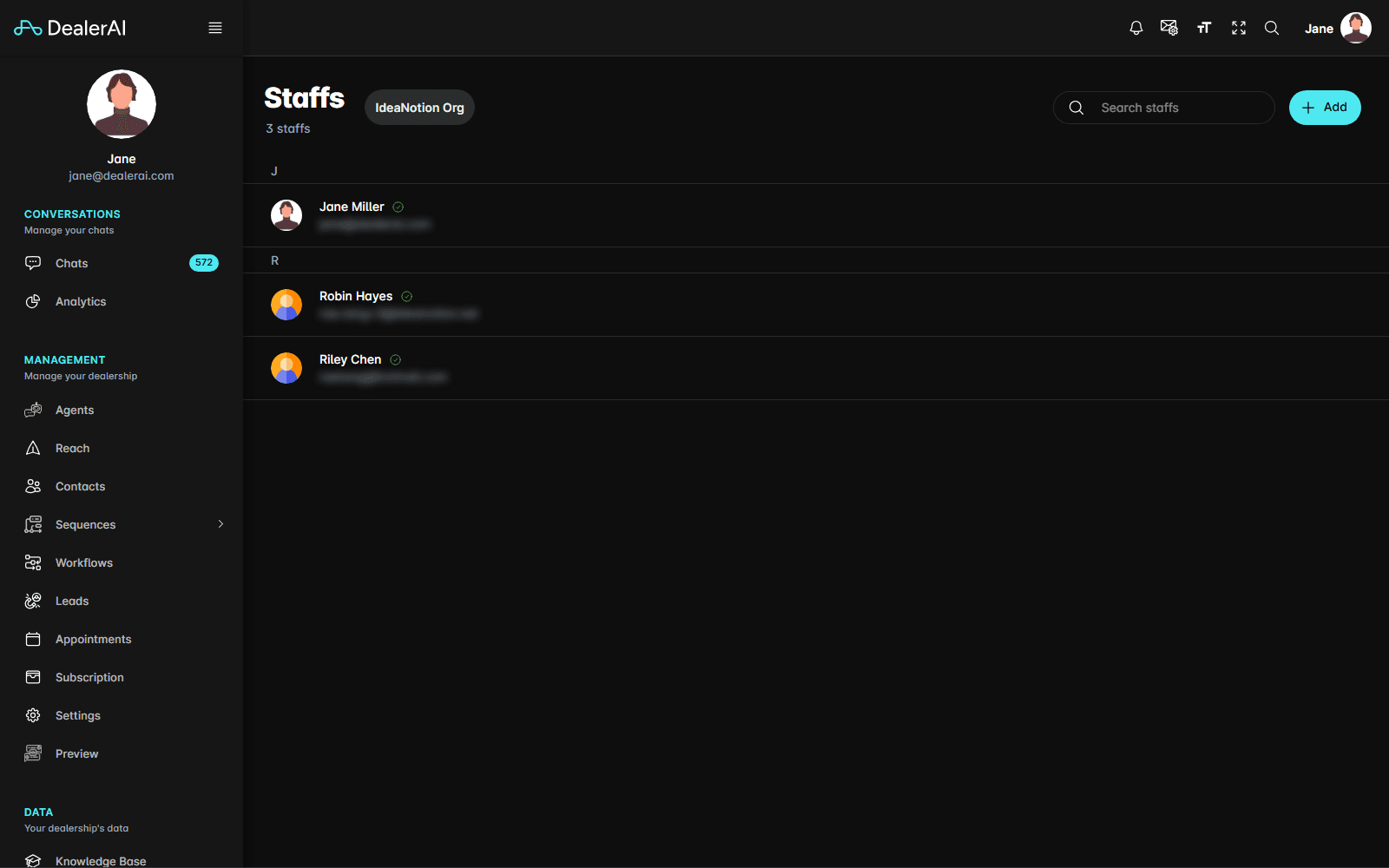
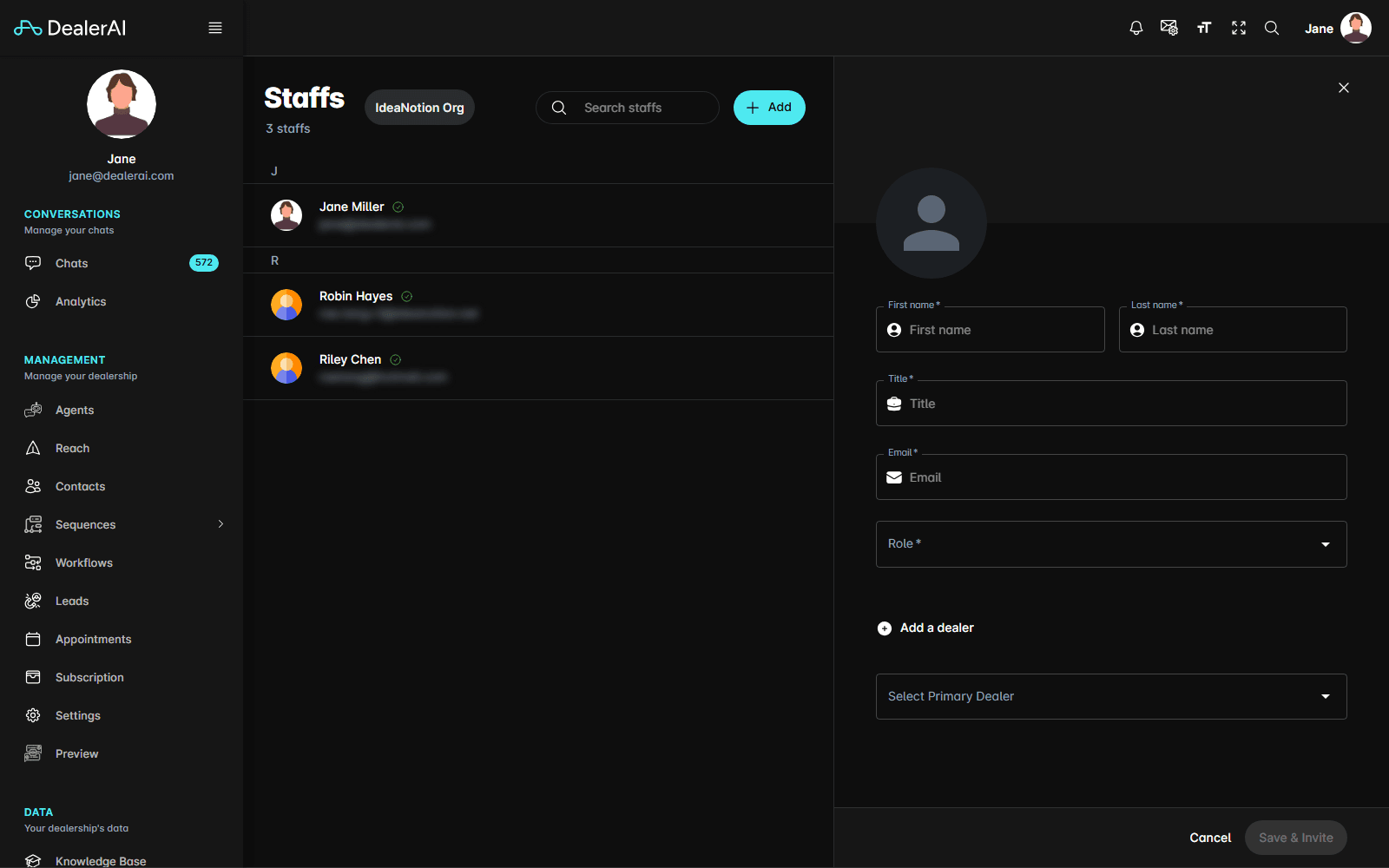
The user receives an email inviting them to create a password and sign in.
Title, at least one dealership, and a primary dealer are all required — the form won't save without them.
Choose the right role
Roles come in two tiers. Organization roles control access across stores and are set on the staff record; dealership roles control what someone can do inside a single store.
| Role | Tier | Best for |
|---|---|---|
| Org Admin | Organization | A general manager who oversees every store in the organization |
| Org User | Organization | Staff who work across stores but don't administer them |
| Dealer Admin | Dealership | The person responsible for one store's configuration |
| Dealer Manager | Dealership | Department or floor managers |
| Dealer User | Dealership | Sales, BDC, and service staff doing day-to-day work |
Which features each dealership role can reach is controlled under Settings → Capabilities by Dealer Admins, or Organizations → Capabilities by Organization Admins.
Re-send an invite
If someone didn't get their invite or the link expired:
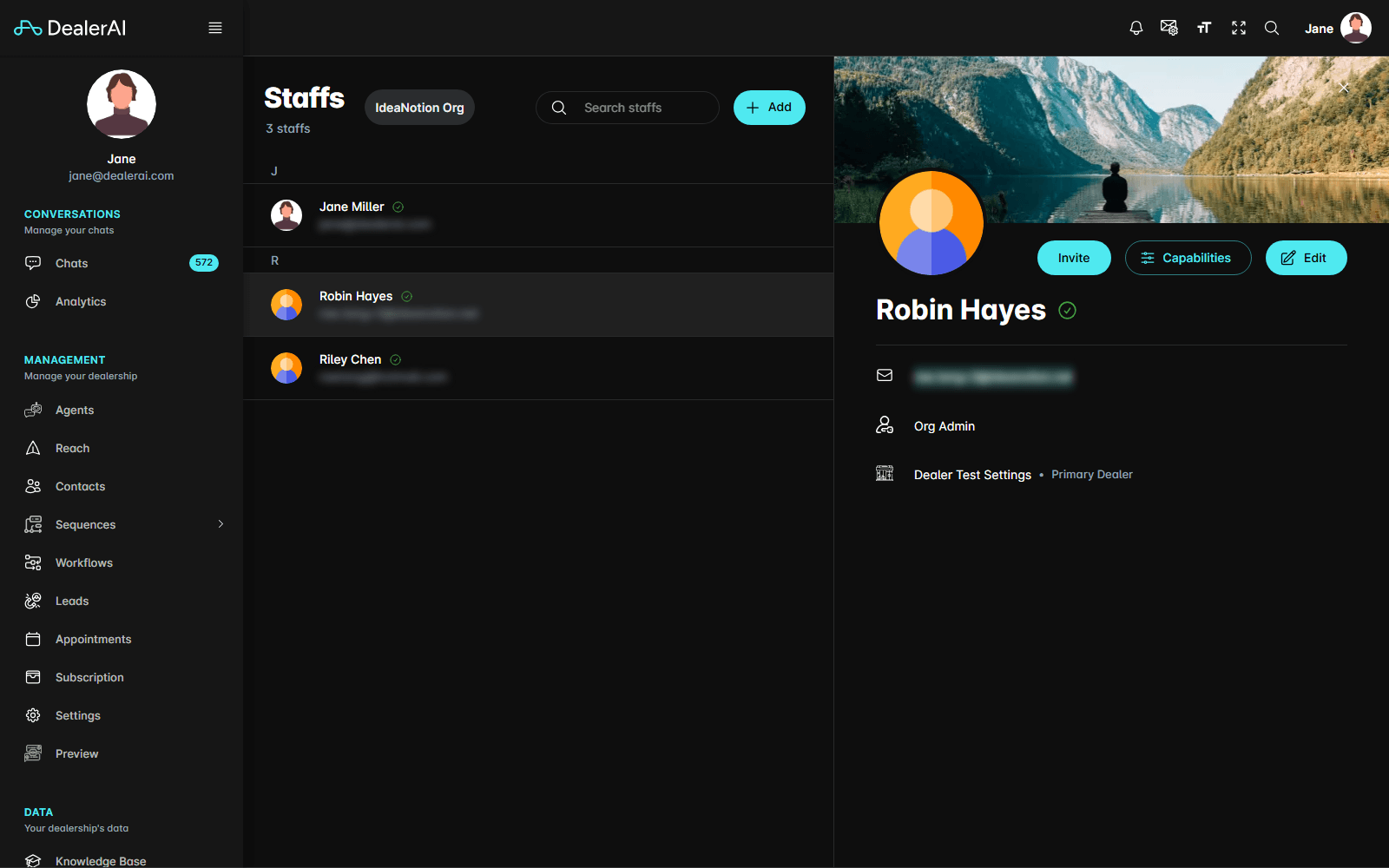
Change or remove a user
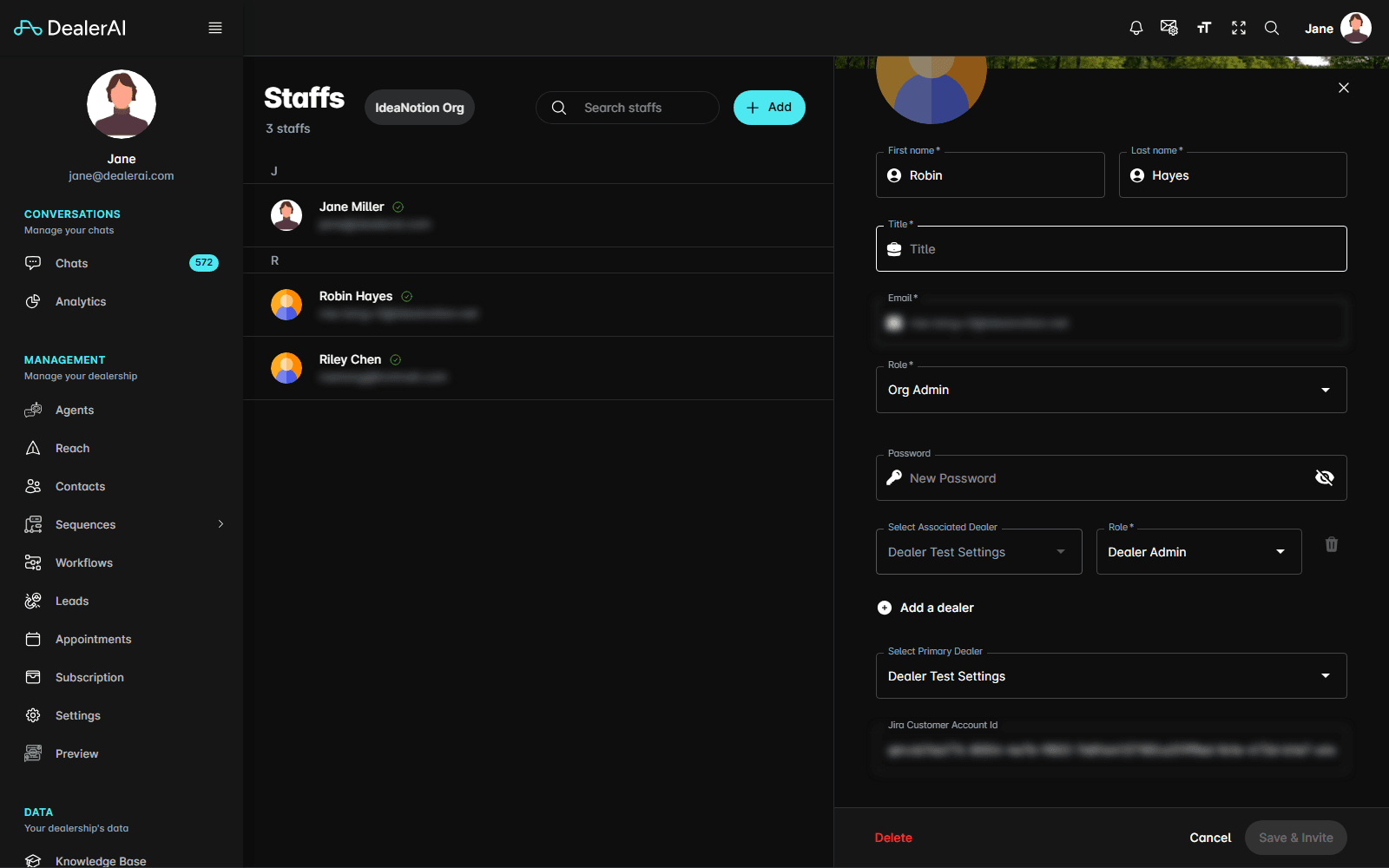
To remove someone from one store but keep their account, open Organizations → Stores → the store → Users, tick them in the list, and use Delete.
Removed users lose portal access. Conversations they handled remain in your records.