

How to update your profile and notifications
Edit your personal details and email signature, and choose how DealerAI notifies your dealership.
Your profile controls how you appear inside the portal and the signature attached to emails you send.
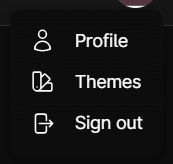
Open your profile
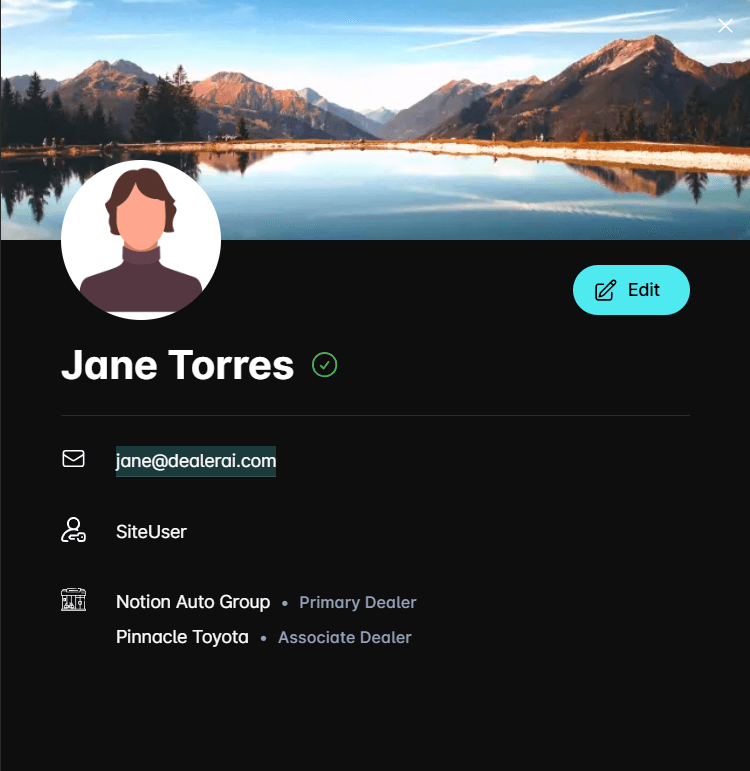
The profile panel opens showing your name, email, roles, and the dealerships you can access.
Edit your details
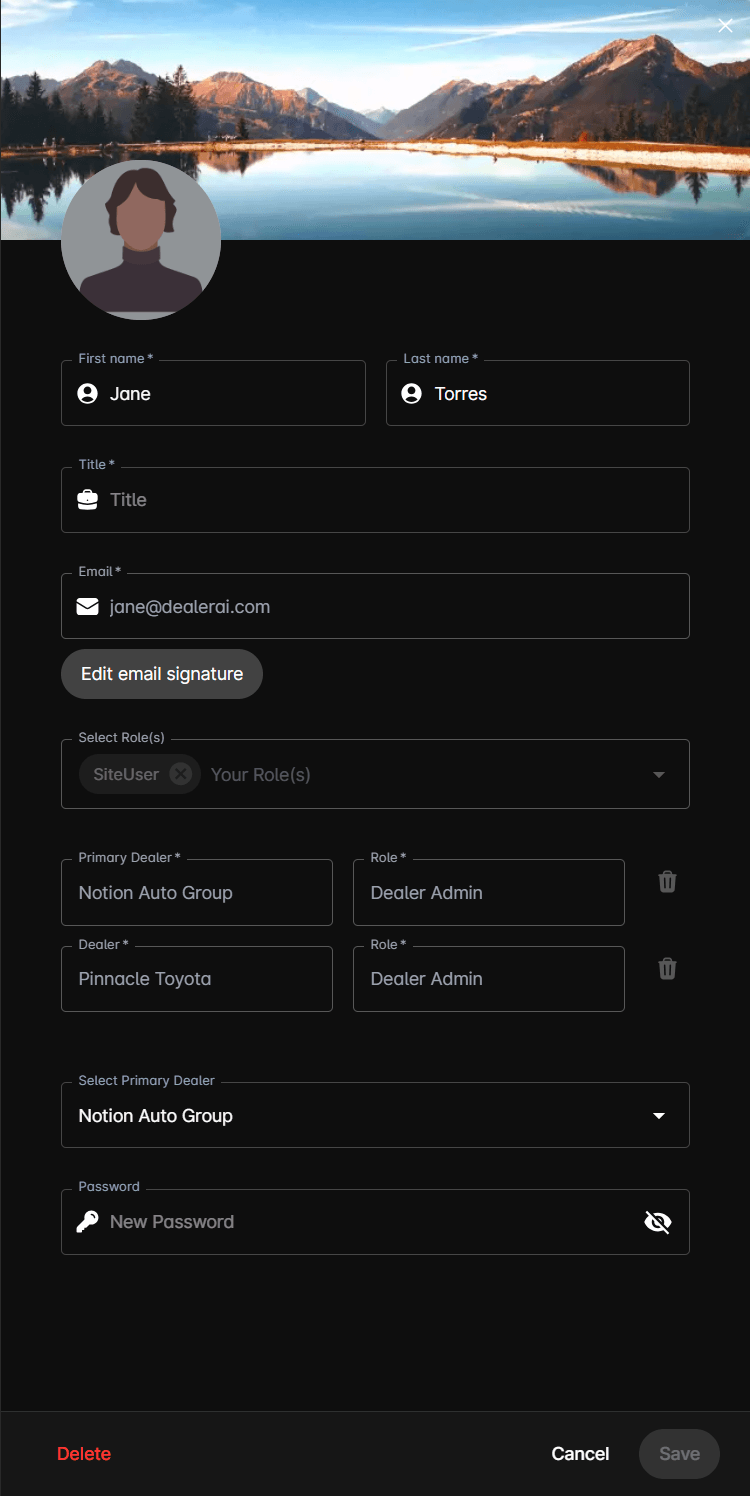
Click Edit, change any of the fields below, then click Save.
| Field | Notes |
|---|---|
| Avatar | Click the image to upload a photo; appears in the portal and on handoffs |
| Title | Your job title, e.g. Sales Manager |
| Read-only — ask an administrator to change it | |
| Email Signature | Appended to emails you send from the portal |
| Password | Sets a new password |
Email signature
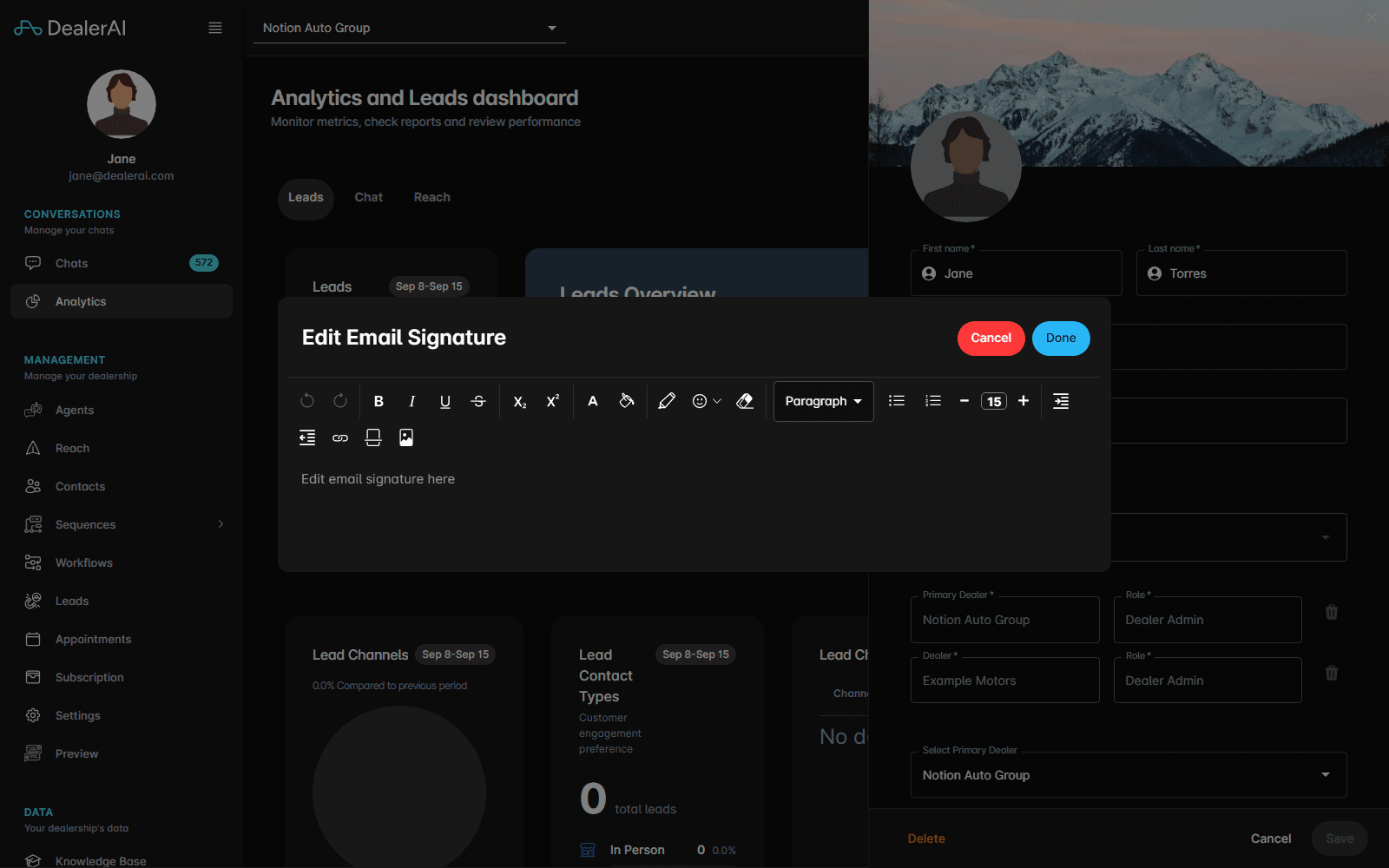
Click Edit email signature to open the editor, write your sign-off with the formatting toolbar, then click Done — or Cancel to discard it. Done only closes the editor; click Save on the profile form to keep the change.
Configure notifications
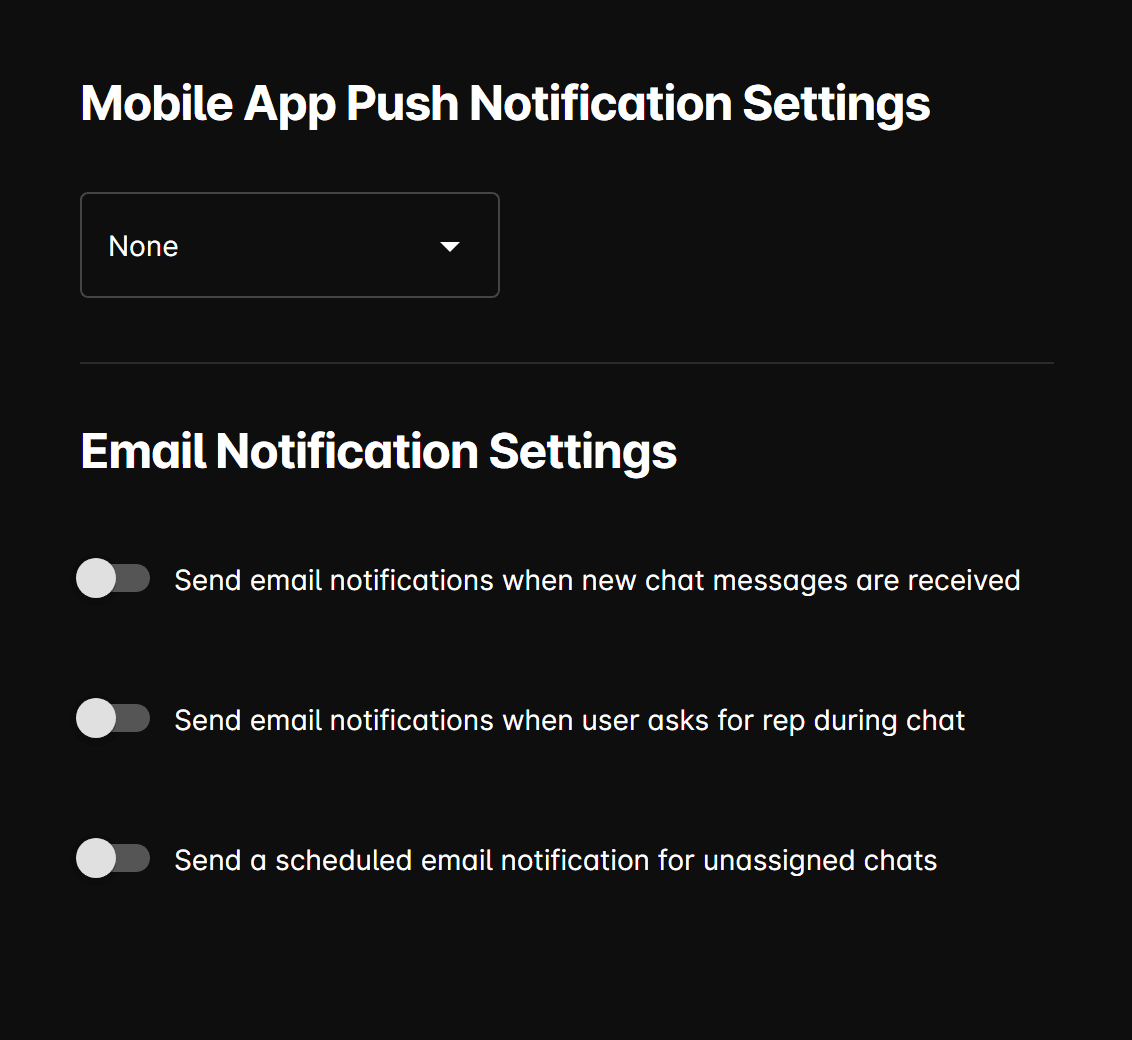
Notifications are configured per dealership. Go to Settings → Notifications.
| Setting | Options |
|---|---|
| Mobile App Push Notification Settings | None, New conversation only, or Every new message |
| New chat messages received | Email on/off |
| User asks for a representative during a chat | Email on/off |
| Scheduled email for unassigned chats | Email on/off |
The recipient list appears once you turn on at least one of the email toggles. Add the addresses that should receive these emails using Add Another Email, remove one with the bin icon, then click Save. At least one address is required while email notifications are on.
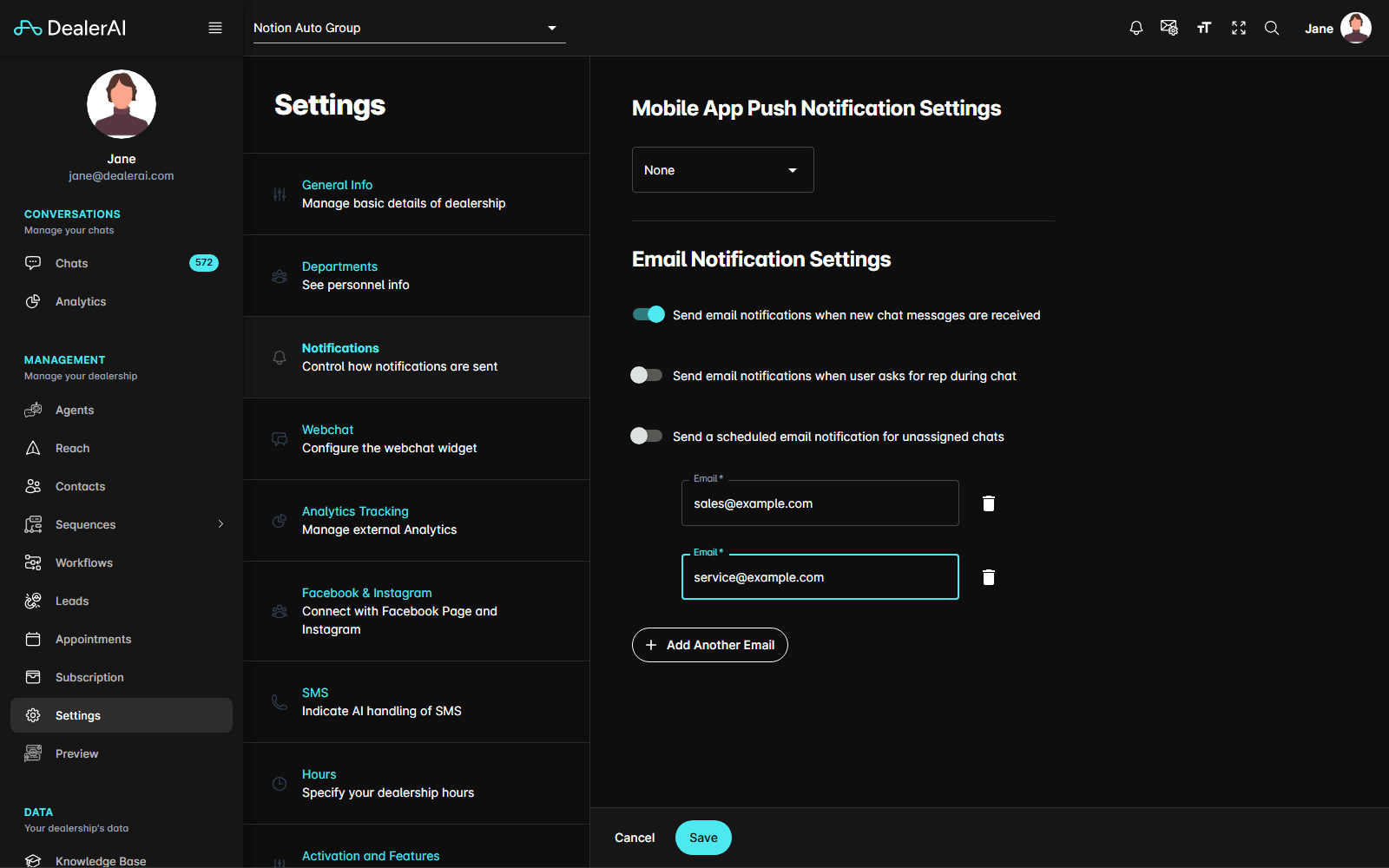
Because these settings apply to the whole dealership, changing them affects everyone who receives notifications for that store. See Notifications.
Delete your account
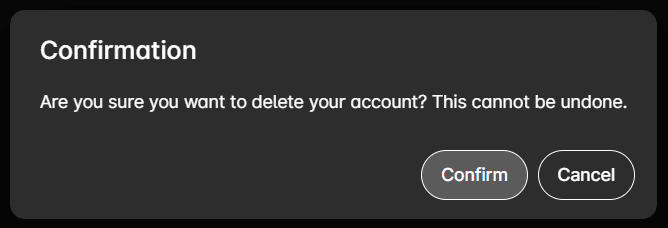
The profile panel has a Delete option that removes your account. You'll be asked to confirm.
Deleting your account removes your portal access. Conversations you handled stay in your dealership's records.