

How to switch between dealerships
Change the active dealership when you have access to multiple stores.
If you manage more than one store, you can quickly switch the active dealership without signing out. The portal scopes most pages — Conversations, Leads, Inventory, Settings, Knowledge Base — to the dealership you currently have selected.
Switch the active dealership
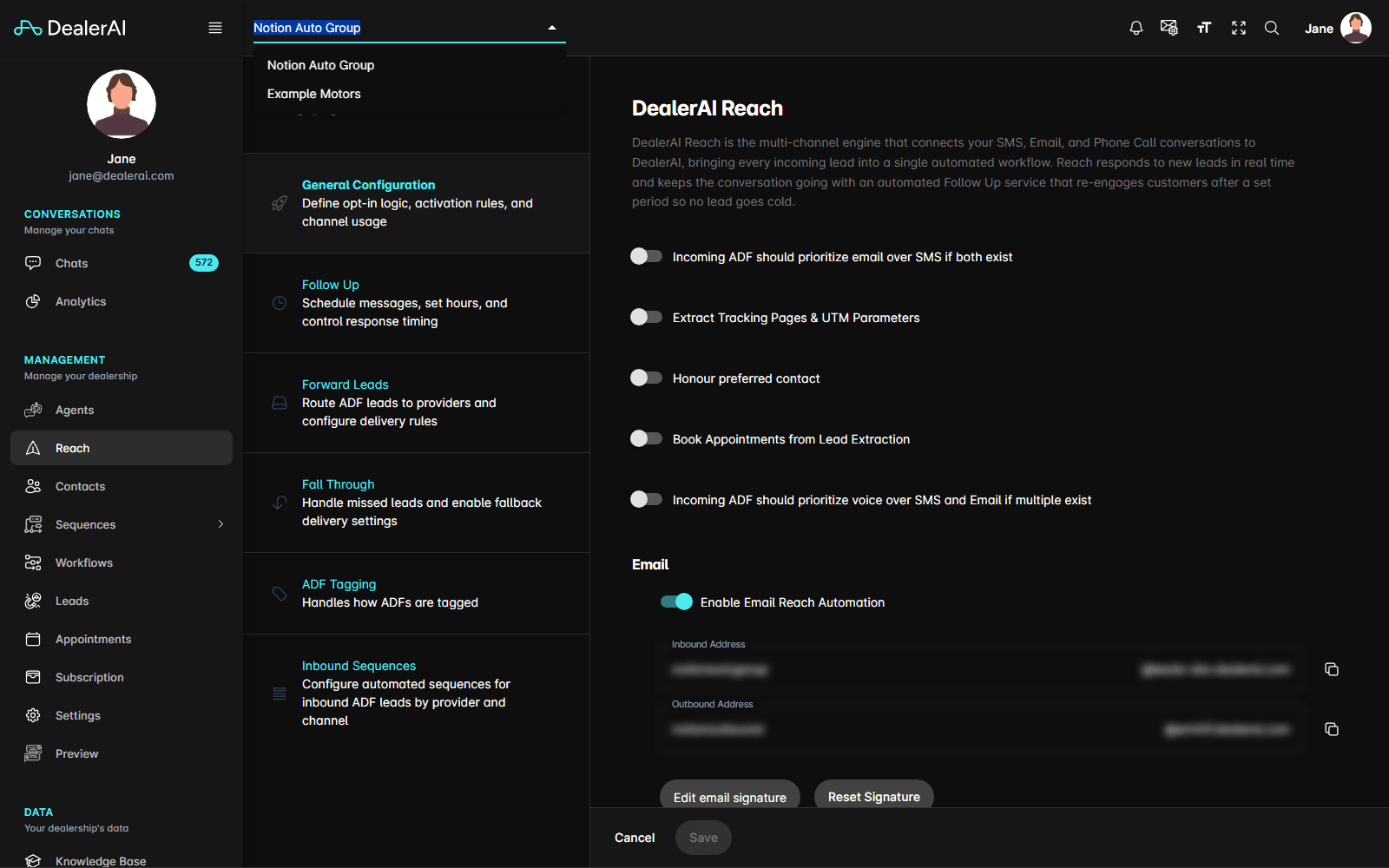
The page reloads with that dealership's data. Some lists also offer All Dealers, which shows records from every store you can access.
The page reloads with data for the selected dealership. Your selection is remembered the next time you sign in.
Viewing several dealerships at once
The Analytics dashboard replaces the single picker with a multi-select so you can report across stores:
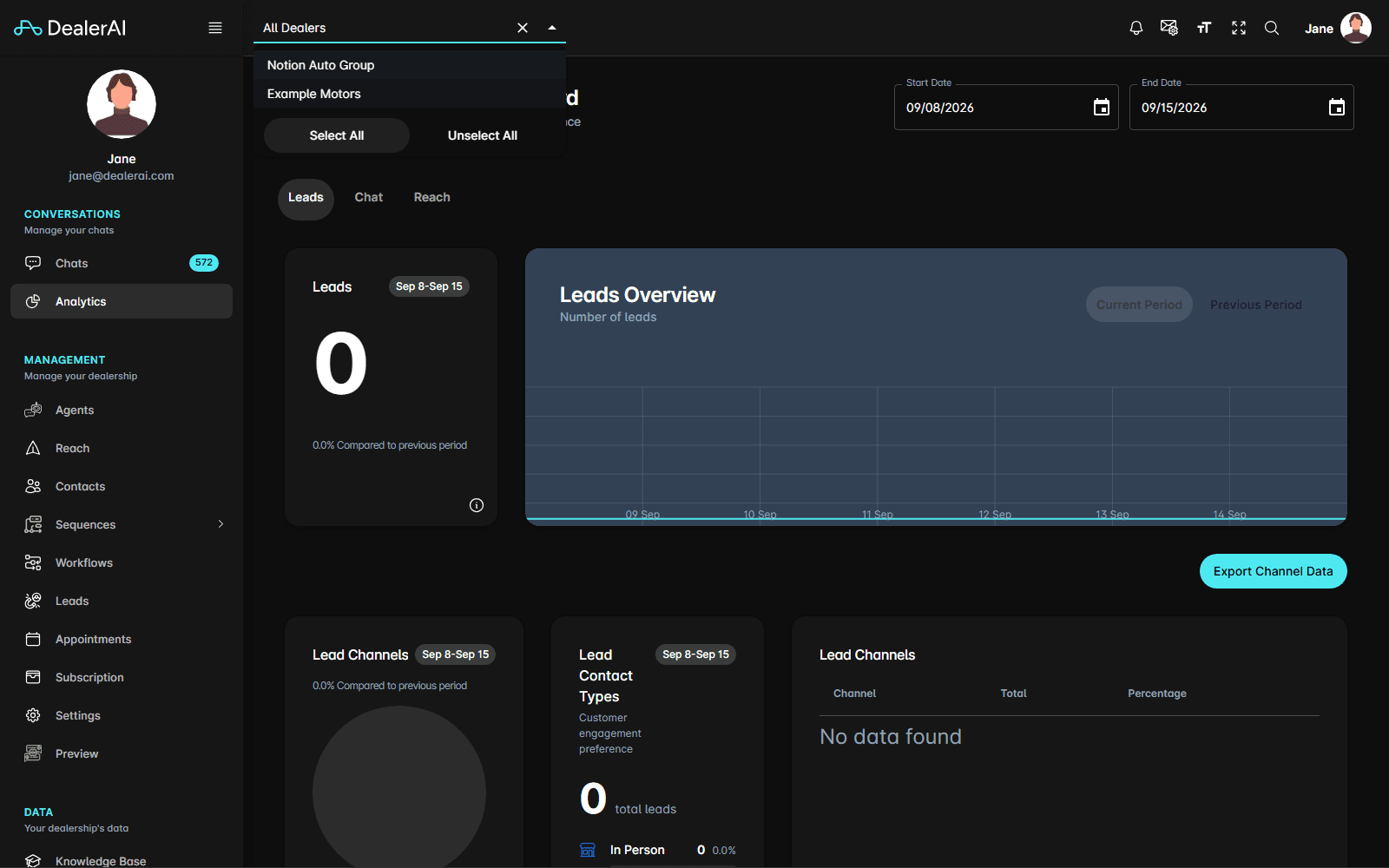
With every store selected the picker simply reads All Dealers. Use Unselect All to clear the selection and start again.
Tips
- Check the picker before you edit. It's easy to change the wrong store's settings right after switching.
- Which stores you see depends on the dealerships assigned to your account. If one is missing, ask your administrator to add it under Organizations → Staffs.
- Your Primary Dealer decides which store the portal opens on by default. See How to update your profile.