

Getting Started
How to log in and reset your password
Sign in to the DealerAI portal and recover access if you forget your password.
This guide covers signing in to the portal and resetting your password if you've forgotten it.
Sign in
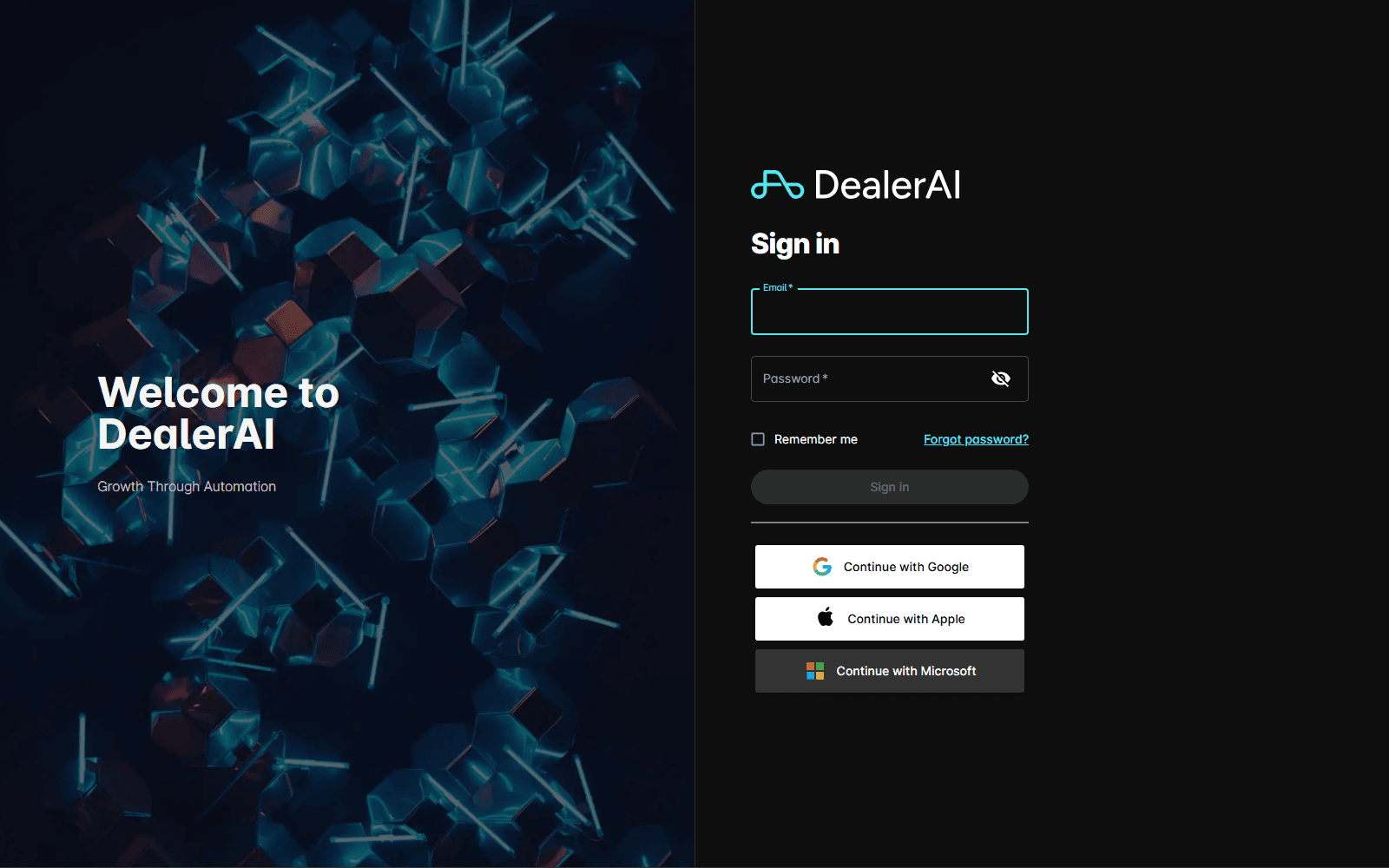
Open https://portal.dealerai.com in your browser.
Enter the Email address associated with your DealerAI account.
Enter your Password.
Click Sign in.
If your organization uses single sign-on, use Continue with Google, Continue with Apple, or Continue with Microsoft instead of entering a password.
Bookmark the portal URL for quick access. The portal is fully responsive and also works in your mobile browser, or you can install the dedicated mobile app from the App Store or Google Play.
Reset a forgotten password
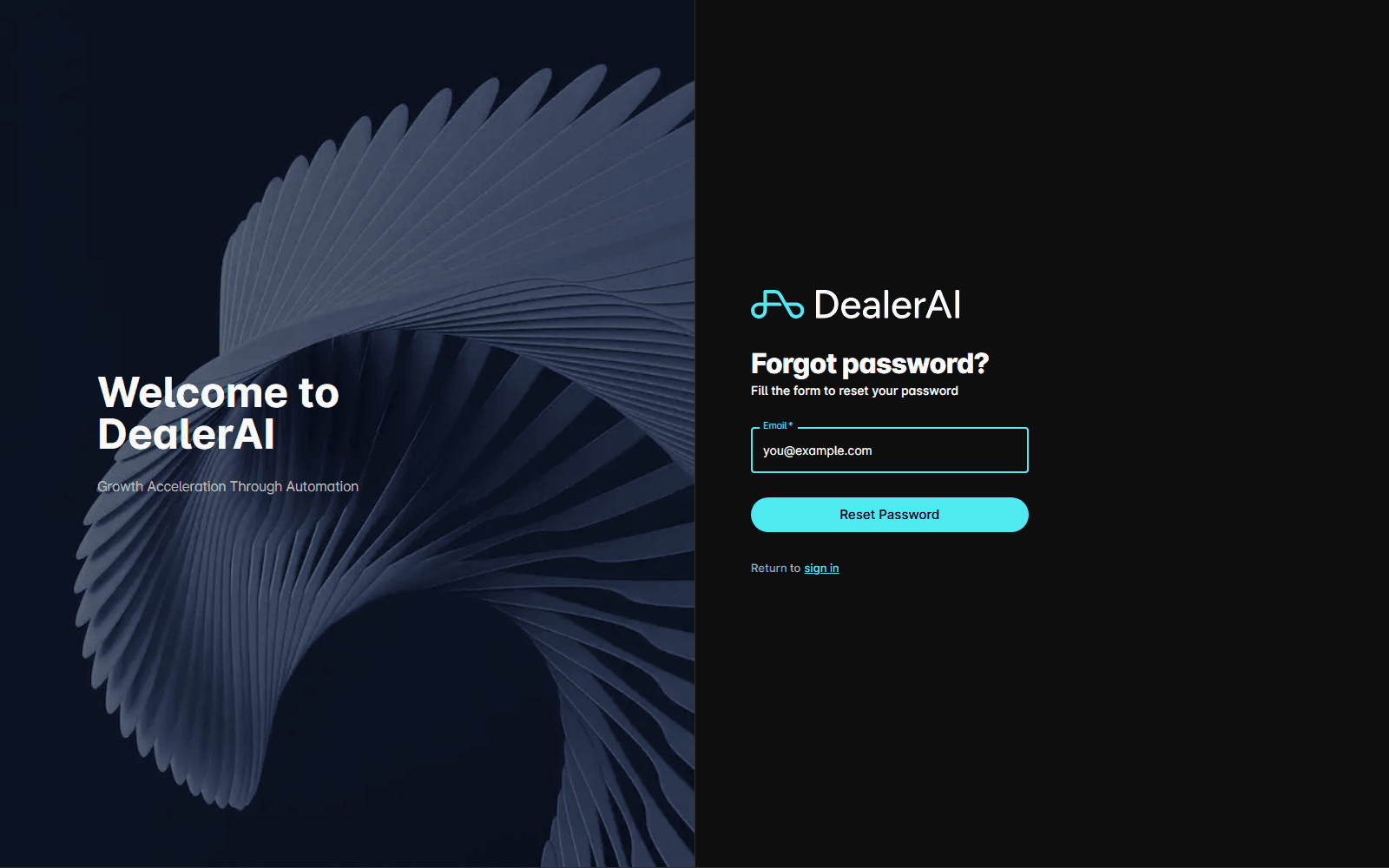
From the sign-in page, click Forgot password?
Enter the email address on your account.
Click Reset Password to send the reset email.
Check your inbox for the email from DealerAI and open the reset link.
Enter your new password in Password, repeat it in Password (Confirm), and submit.
Return to the sign-in page and log in with the new password.
If the reset email doesn't arrive within a few minutes, check your spam folder. If it's still missing, ask your organization administrator to confirm the email address on your account.
Change your password while signed in
Click your avatar in the top-right of the portal.
Select Profile.
Click Edit.
Type your new password in the Password field.
Click Save.
Troubleshooting
| Problem | Try this |
|---|---|
| "Invalid credentials" error | Confirm caps lock is off and the email is correct. Use Forgot password if unsure. |
| Reset email never arrives | Check spam, then ask your administrator to confirm the email on your account. |
| SSO sign-in fails | Make sure you're using the same provider (Google, Apple, or Microsoft) your account was created with. |