

User Profile
View and update your personal account details, avatar, password, and email signature from the User Profile panel.
The User Profile panel lets each portal user manage their own account information — display name, avatar, job title, email signature, and password. It is accessible from the user menu in the top navigation bar.
Viewing your profile
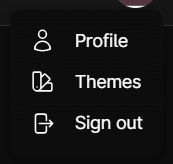
Click your avatar or name in the top-right corner of the portal to open the user menu, then select Profile to open the profile view panel.
The profile view displays a read-only summary of your account:
| Field | Description |
|---|---|
| Name | Your full first and last name. |
| Active / Inactive badge | A green check indicates your account is active; a red minus indicates it is inactive. |
| Title | Your job title at the dealership. |
| Your login email address. | |
| Site Roles | Portal roles assigned to your account (e.g., Site Admin, Site User). |
| Associated Dealers | Dealerships linked to your account. Each entry shows the dealer name and whether it is your Primary Dealer or an Associate Dealer. |
| Organizations | Organizations your account belongs to. |
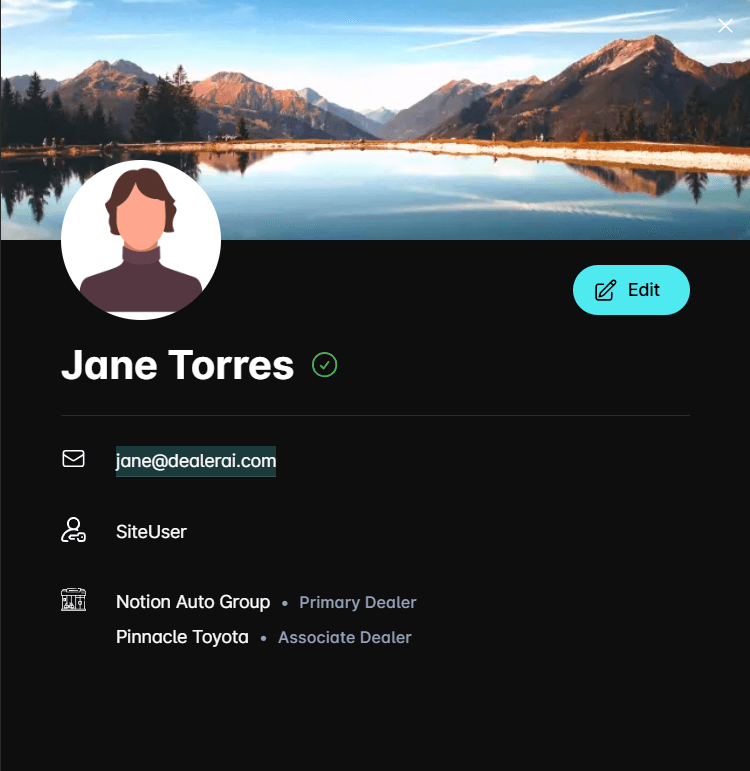
Click Edit to open the edit form and make changes.
Editing your profile
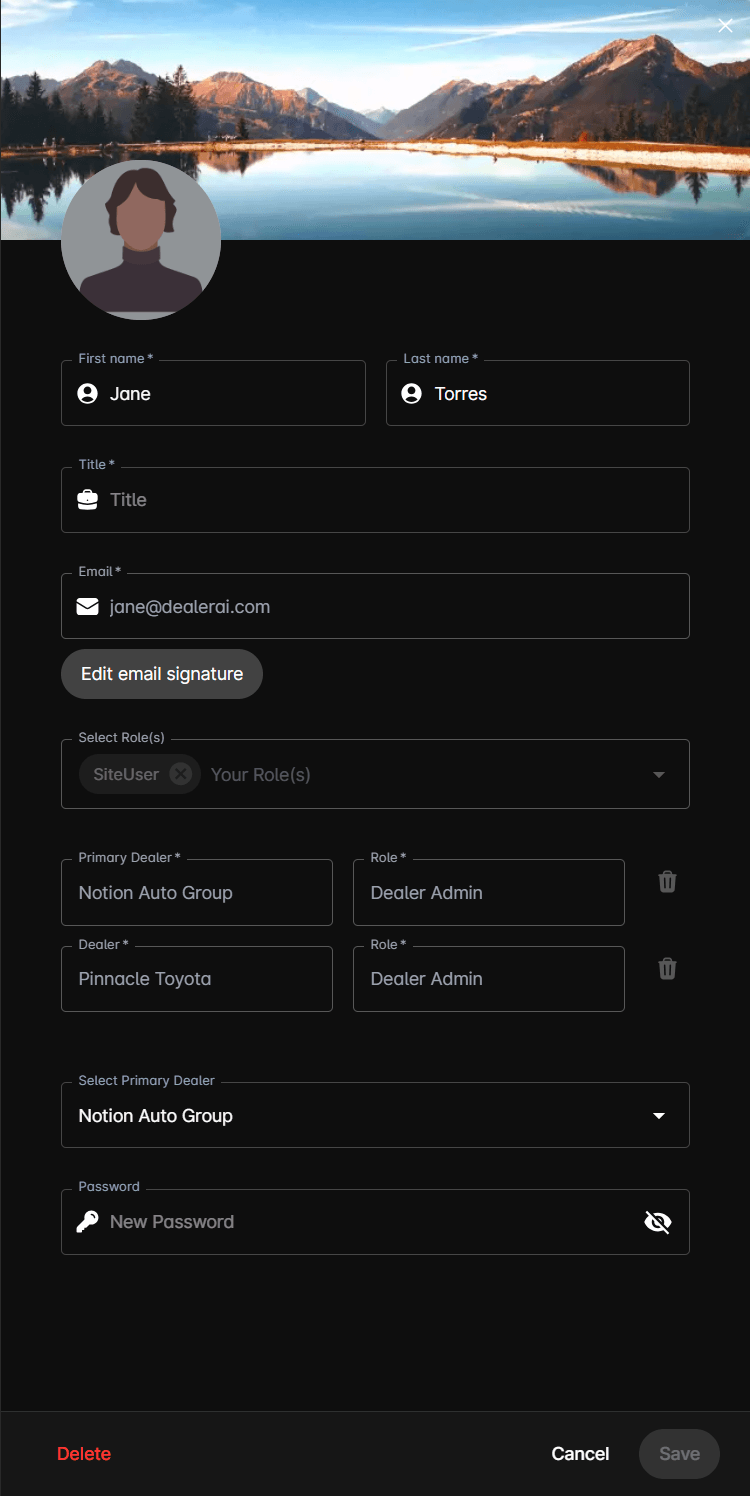
The edit form allows you to update personal details. Fields that are managed by an administrator (email, roles, and dealer assignments) are read-only.
Profile photo
Click the avatar circle to upload a new profile photo. You can also remove the current photo. Supported formats are standard image files (JPEG, PNG, etc.).
Name and title
| Field | Required | Description |
|---|---|---|
| First Name | Yes | Your first name. |
| Last Name | Yes | Your last name. |
| Title | Yes | Your job title (e.g., Sales Manager, BDC Agent). |
Your email address is displayed but cannot be changed from this form. Contact your administrator to update your login email.
Email signature
The Email Signature editor allows you to compose a rich-text signature that is appended to outbound emails sent on your behalf. Use the editor toolbar to format text, add links, or include your contact details.
Password
To set a new password, enter it in the Password field. Passwords must be at least 8 characters long. Leave the field empty to keep your current password.
Use the eye icon on the right of the field to toggle password visibility.
Dealers and primary dealer
Your dealer associations are managed by administrators and are displayed as read-only. If you are assigned to multiple dealerships, you can update your Primary Dealer using the Select Primary Dealer dropdown. The primary dealer determines the default context used throughout the portal.
Dealer role assignments (e.g., Sales, BDC) are set by administrators and cannot be changed from your own profile.
Saving changes
Click Save to apply your changes. A success toast will confirm the update. Click Cancel to discard changes and return to the profile view.
Deleting your account
Account deletion is permanent and cannot be undone. All personal data associated with your account will be removed.
In the edit form, click the Delete button at the bottom-left. A confirmation dialog will appear asking you to confirm the deletion.
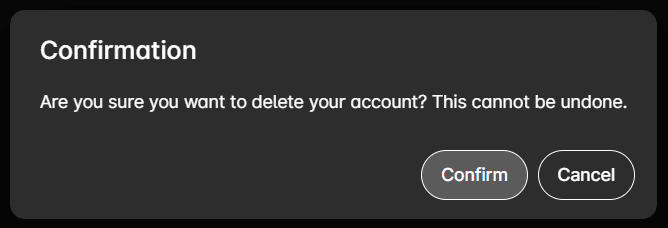
Click Confirm to permanently delete your account. You will be signed out immediately.