

Portal GuideContacts
How to edit contact details
Update a contact's name and address, add tags and notes, or create a contact by hand.
Contact records are created automatically when a customer talks to the dealership on any channel. Edit one to correct what the agent captured or to add what it never saw.
Edit a contact
Go to Contacts from the sidebar.
Find the contact with the search box, or filter the list, then click their row.
Click Edit in the header. Edit Contact Details opens on the right.
Update First name, Last name, Address, Postal Code, Province, and Country.
Click Save.
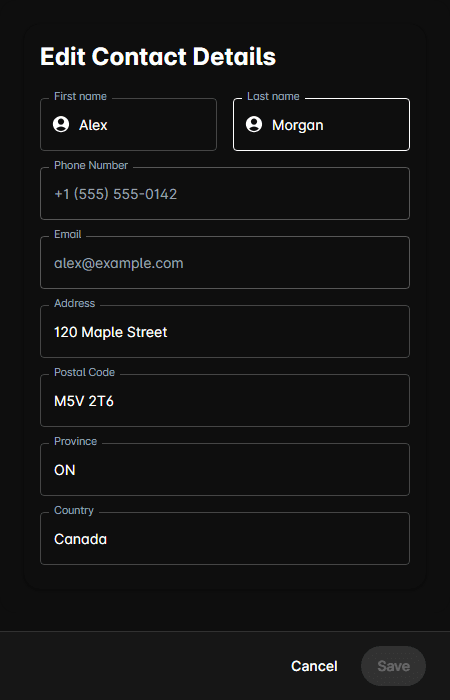
Phone Number and Email are locked on an existing contact — they identify the record and can only be set when the contact is created. If a customer moves to a new number or address, create a new contact for it.
Add a contact by hand
Click Add above the Contacts table. Create Contact opens on the right.
Enter a Phone Number, an Email, or both — one of the two is required.
Fill in whatever else you have, then click Save.
When to edit a contact
- The customer gave a corrected name or address during a conversation
- You collected something offline, on the phone or in person
- The agent captured a name from a signature or a lead form and got it wrong
What edits affect
- Reach sequences — outbound messages use the updated name
- Agent conversations — the agent uses the updated details from then on
- Exports and CRM pushes — they carry the corrected record