

How to edit or remove a holiday
Update the date, name, or remarks on a holiday — or delete it when it's no longer needed.
Holidays often need small tweaks: a date change for a moving holiday, an updated remark about reopening, or removing a one-time closure that has passed.
Edit a holiday
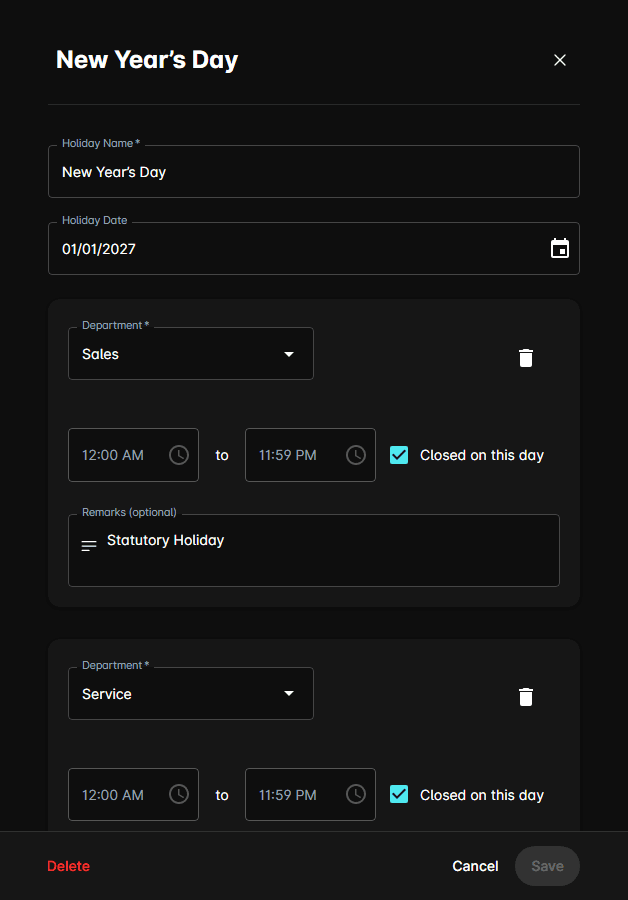
Changes take effect immediately. If the date moved, the AI will update its scheduling behaviour right away.
Remove a holiday
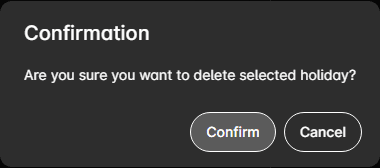
Removing a holiday only affects future dates. Past appointments and conversations that referenced the closure are unchanged.
When to remove vs. keep
| Situation | Recommended action |
|---|---|
| One-time closure has passed | Delete to keep the list tidy |
| Annual holiday whose date changes (Easter, Thanksgiving) | Edit the date each year — don't delete |
| Closure was added by mistake | Delete as soon as possible to free up appointment availability |
Bulk removal
To remove multiple holidays at once, tick the checkboxes on the holiday list and click the Delete button in the header toolbar. Enter the number of records to confirm, then click Delete.
Annual cleanup
Walk through the list once a year and delete any one-time closures that have already passed. This keeps the holiday view focused on what's coming up.