

Portal GuidePromotions
How to edit or deactivate a promotion
Modify promotion details or toggle a promotion's active status.
Promotions can be updated at any time — whether you need to extend a deadline, update the offer details, or temporarily deactivate a promotion without deleting it.
Edit a promotion
Go to Promotions from the sidebar.
Click the promotion you want to modify.
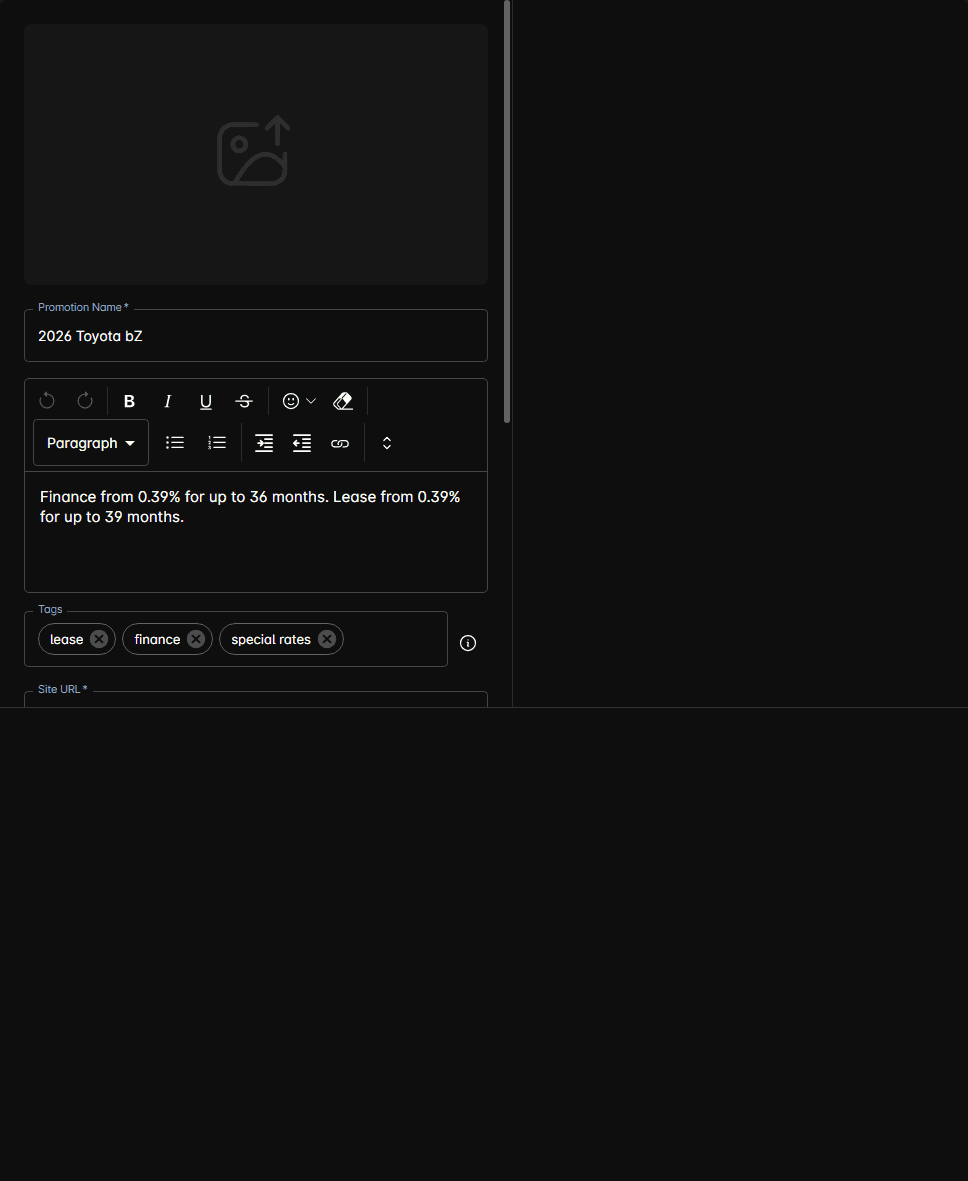
Update the Promotion Name and Promotion Description as needed.
Add or remove Tags to adjust how the AI matches the promotion.
Update the Site URL or Start/End Dates if applicable.
Click Save.
Click Train AI to sync the updated information to the bot's knowledge base.
Deactivate a promotion
To stop the AI from referencing a promotion without deleting it:
Open the promotion from the list.
Toggle the Active status to Off.
Save the change.
Click Train AI to update the bot's knowledge.
Deactivated promotions remain in your list for reference but the AI will not mention them in conversations.
Reactivate a promotion
Open the deactivated promotion.
Toggle the Active status back to On.
Verify the dates are still valid (update if needed).
Save and Train AI.
Always click Train AI after making changes. The bot uses a cached version of your promotions — edits don't take effect until you retrain.
When to deactivate vs. delete
- Deactivate — when the promotion might return (seasonal offers, recurring events)
- Delete — when the promotion is permanently retired and you want a cleaner list
Tips
- After extending a promotion's end date, train the AI so it stops telling customers the offer has expired.
- Use deactivation for flash sales — toggle on/off quickly without re-entering all details.
- Review expired promotions monthly and clean up ones you won't reuse.