

Portal GuideServices
How to edit or remove a service
Modify an existing service's details or delete it from your catalog.
As pricing changes or services are added and retired, you'll need to update your service catalog. Edits take effect immediately — the AI uses the updated information in its next response.
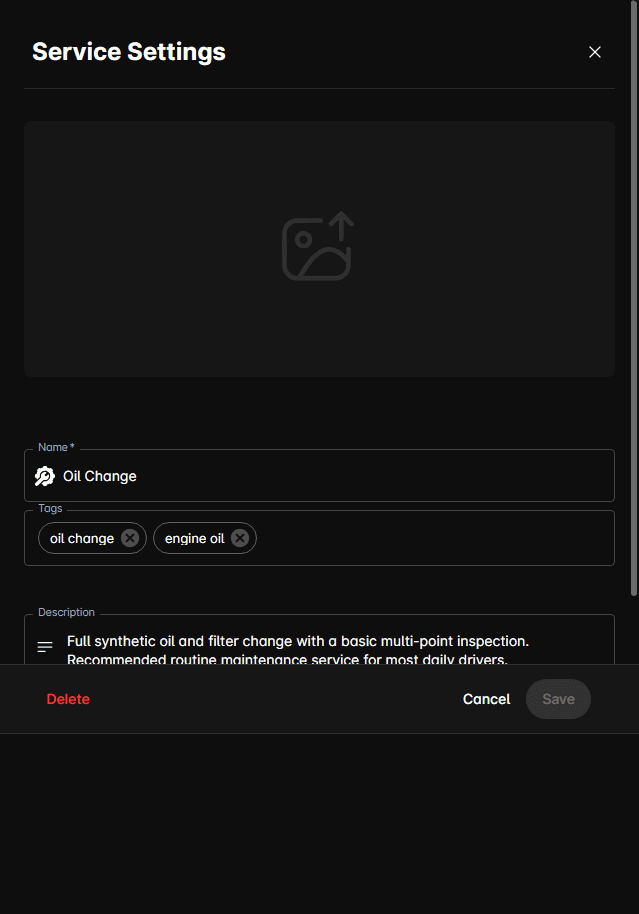
Edit a service
Go to Services from the sidebar.
Click the service you want to modify.
Update the Name, Tags, or Cost as needed.
Revise the Description to reflect any changes in what's included.
Replace or remove the Image if applicable.
Click Save to apply your changes.
Remove a service
Go to Services from the sidebar.
Click the service you want to remove.
Click Delete (or the remove/trash icon).
Confirm the deletion when prompted.
Once deleted, the AI will no longer reference this service in conversations.
When to edit vs. remove
- Edit — when pricing changes, descriptions need updating, or you're rebranding a service
- Remove — when the service is permanently discontinued and shouldn't be mentioned at all
Impact on active conversations
- Edits: The AI uses updated details from its next response onward. Active conversations mid-flow will get the new information.
- Removal: The AI stops mentioning the service immediately. If a customer was just told about the service, the AI will gracefully handle follow-up questions.
If you're temporarily suspending a service (seasonal, supply issues), consider using Toggle Bookable Status instead of deleting — this keeps the service visible but prevents appointment booking.
Tips
- Update prices at least quarterly to ensure the AI quotes accurately.
- When renaming a service, update the description too — customers may know it by the old name.
- Before deleting a service, check if any active Reach sequences reference it.