

AI Agents
Configure the default, custom, integration, and outbound agents that handle your dealership's conversations and bookings.
An agent is a specialist the AI hands a conversation to when the customer raises a particular kind of request — booking service, arranging a test drive, asking about parts. The Agents section is where you decide which agents are switched on, when they can book, where their leads are emailed, and what extra instructions they follow.
Open it from Agents in the sidebar. The section opens on the Service Agent.
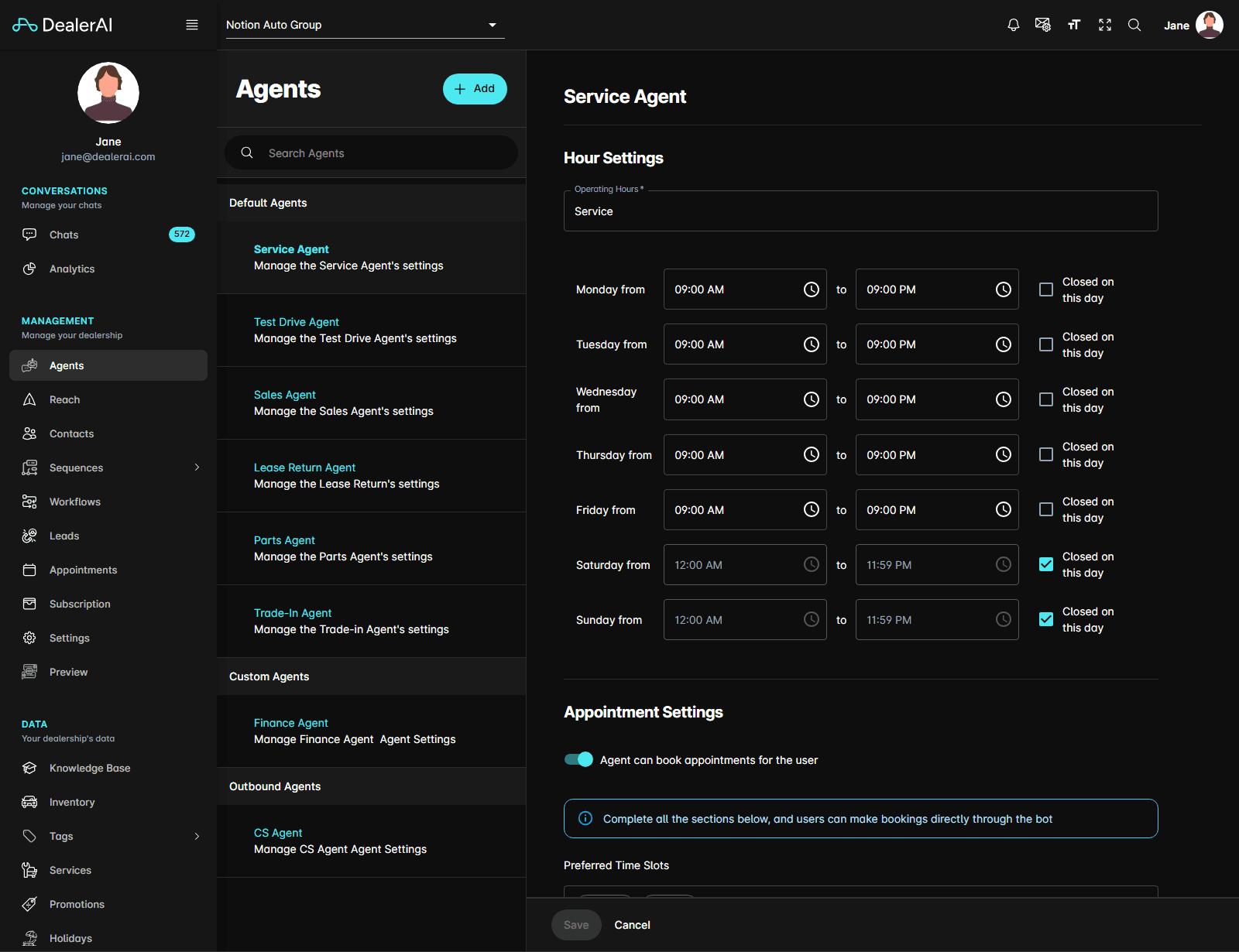
Default agents
Every dealership arrives with the same six agents already in place, and you can configure any of them.
| Agent | Handles |
|---|---|
| Service Agent | Service appointments |
| Test Drive Agent | Test drive bookings |
| Sales Agent | Sales appointments |
| Lease Return Agent | Lease return inquiries |
| Parts Agent | Parts inquiries |
| Trade-In Agent | Trade-in inquiries |
The agent editor
Selecting an agent opens its settings in the main panel. The sections below are those of a default agent; a custom agent's form differs, and How to create a custom agent covers it.
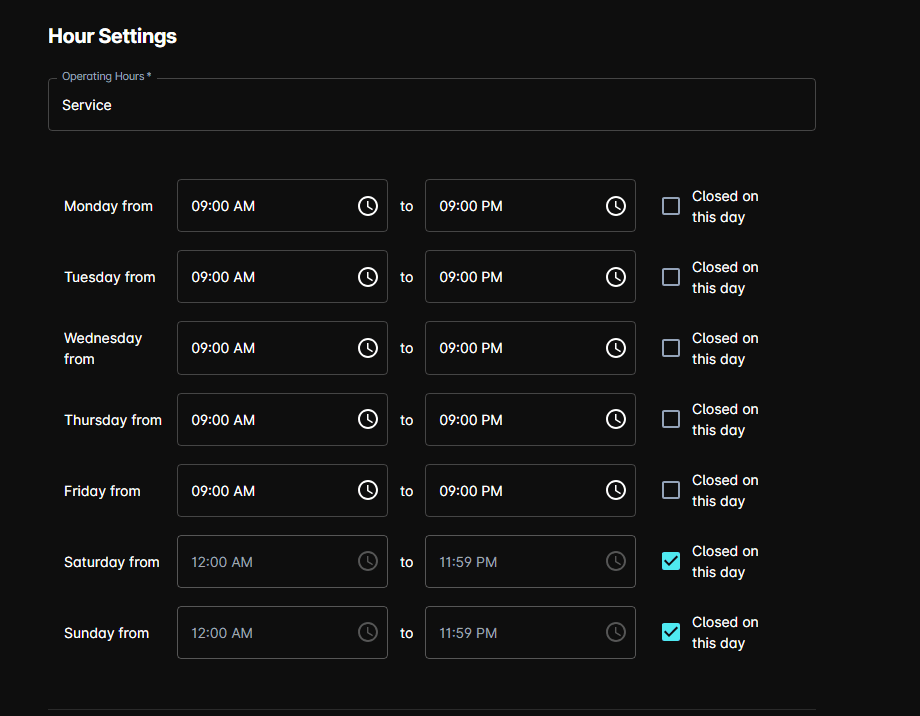
Hour Settings
Operating Hours picks the hours set the agent works to. Choose an existing set, or type a new name to create one — a seven-day grid of opening and closing times, each with a Closed on this day checkbox, appears below.
Appointment Settings
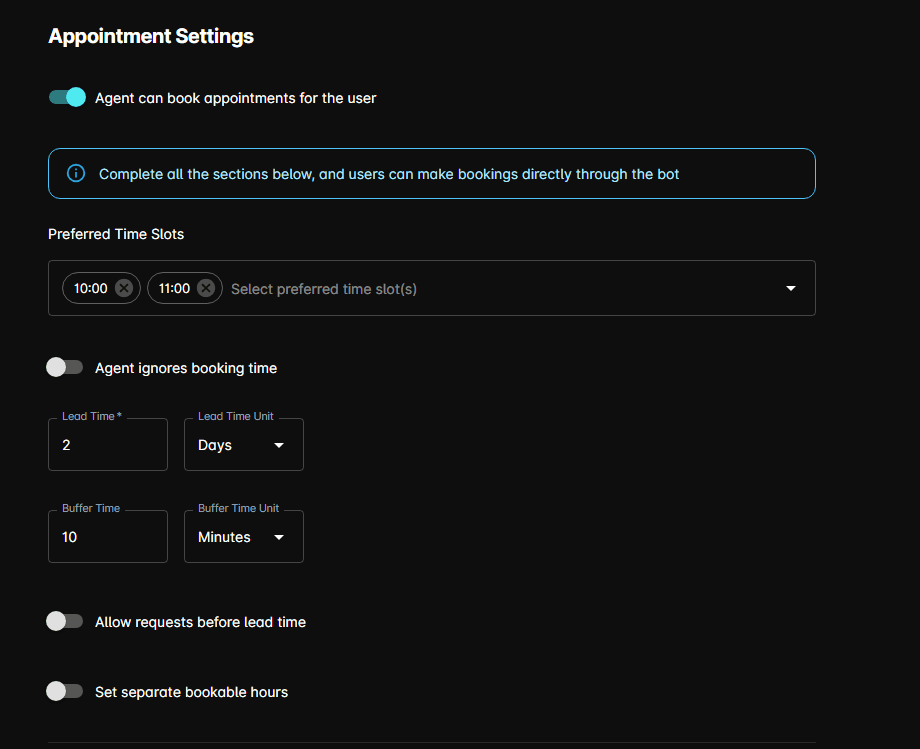
Agent can book appointments for the user is the switch that decides everything below it.
With it on, the agent books directly in chat:
- Preferred Time Slots — the windows the agent offers first (every agent except Parts)
- Agent ignores booking time — books without pinning down a date and time (Service, Lease Return, and Parts only). Turning it on hides the timing fields below
- Lead Time and Buffer Time — how far ahead a booking must be made and the gap left around it, each with its own unit, alongside Allow requests before lead time
- Set separate bookable hours — book inside a different hours set than the operating hours
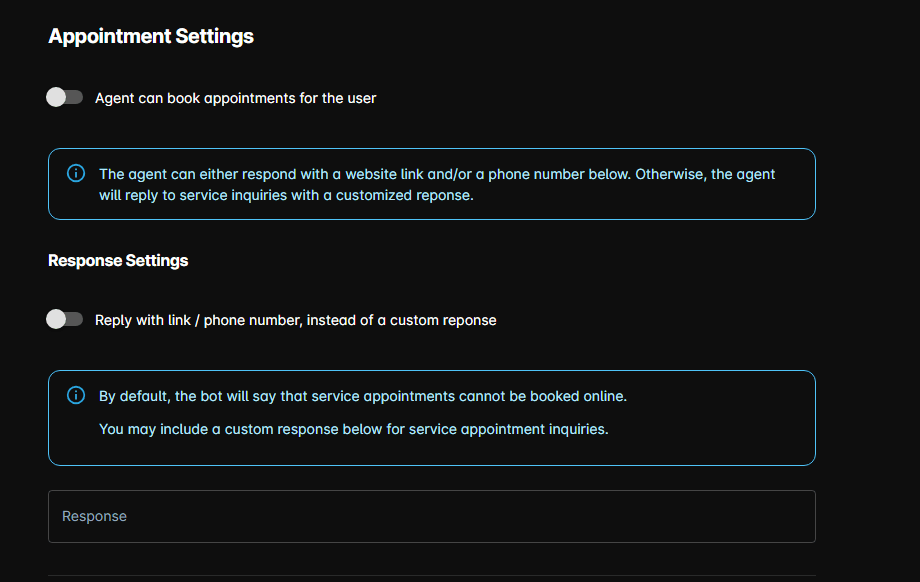
With it off, a Response Settings section appears instead, controlled by a single toggle — Reply with link / phone number, instead of a custom reponse. Turned on, the agent answers with a booking link and, optionally, a phone number. Turned off, it answers with the Response message you write below; left blank, it says that kind of appointment can't be booked online.
Lead Settings
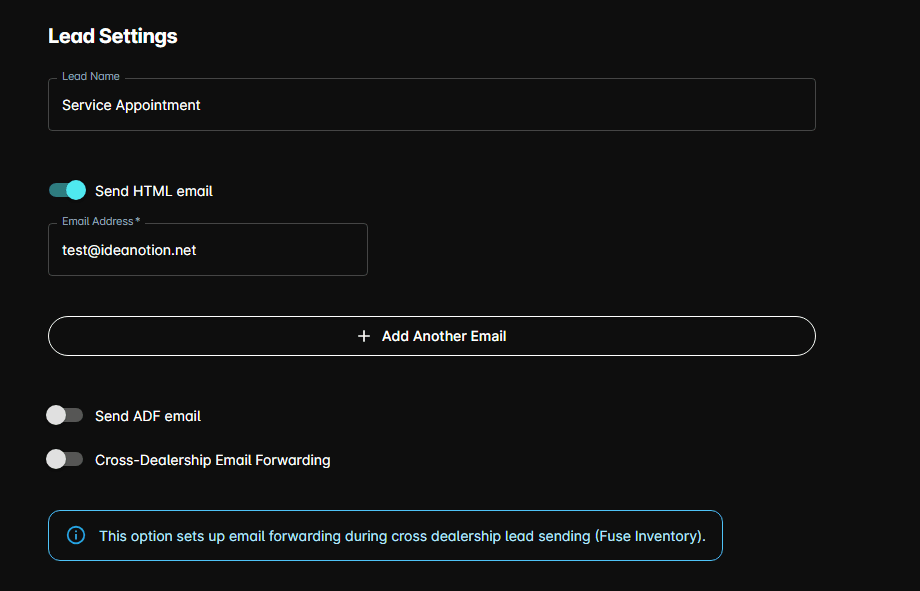
Where the lead goes when the agent captures one: a Lead Name, and Send HTML email and Send ADF email toggles, each with its own list of recipient addresses.
Cross-Dealership Email Forwarding forwards leads during cross-dealership lead sending (Fuse Inventory) to addresses you list.
Additional Info Override
Extra instructions layered on top of the agent's built-in behaviour. See How to edit an agent prompt.
The Add menu
Add in the panel header opens a short menu:
| Item | What it does |
|---|---|
| Custom Agent | Creates an agent for a case the six defaults don't cover |
| Outbound Agent | Creates an agent for proactive outreach |
| Integration Agent | Creates a CreditApp agent, when that integration is available |
| Edit Common Agent Prompt | Opens the prompt shared by every agent |
Notes
- The sidebar contents can change depending on enabled features.
- Some agent sections are dealership-specific, while others depend on organization-level setup.
- If an agent controls booking behavior, review the related Appointments and Reach settings as part of the same workflow.