

Portal GuideAI Agents
How to configure agent parameters
Set the tools, actions, and behavior settings that control what an AI agent can do.
Beyond the system prompt, each agent has configurable parameters that define its capabilities — which tools it can call, what actions it can take, and behavioral settings like whether it's enabled or active.
Access agent parameters
Go to Agents from the sidebar.
Select the agent you want to configure.
Scroll to the Parameters section below the prompt editor.
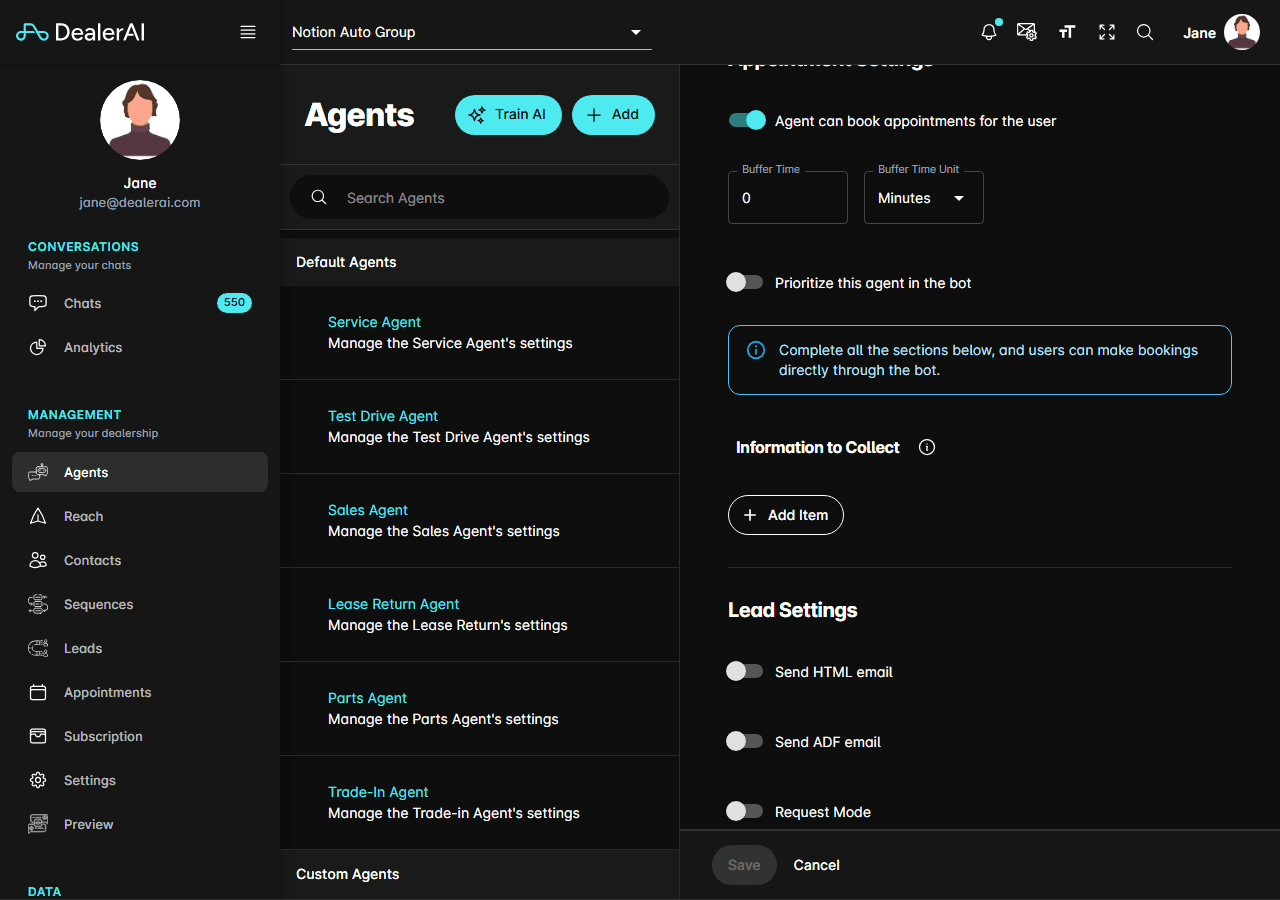
Toggle agent status
Each agent has two key toggles:
- Enabled — Whether the agent is available in the system at all. Disabling an agent removes it from the conversation flow entirely.
- Is Active — Whether the agent is currently handling inquiries. An enabled but inactive agent exists in the system but won't be routed to.
Configure parameters
Parameters define the inputs an agent expects when it's invoked. Each parameter has:
Click Add Parameter to create a new one, or edit an existing parameter.
Set the Name — a clear identifier (e.g., "vehicle_type", "budget_range").
Choose the Type — string, integer, boolean, or other supported types.
Add a Description — explains what the parameter is for (helps the AI use it correctly).
Toggle Is Required if the parameter must be provided before the agent can proceed.
Click Save to apply changes.
What parameters control
Parameters work with the agent's tools and actions:
- Tools return information to the agent (e.g., search inventory, look up location)
- Actions transfer control to another agent (e.g., hand off to Finance Agent)
- Parameters define what data the tools and actions need to function
Changes to parameters affect how the AI interacts with internal systems. If you're unsure about a parameter's purpose, check with your administrator before modifying it.
Tips
- Keep parameter descriptions clear — the AI uses them to decide when and how to fill values.
- Mark parameters as required only when the agent truly cannot proceed without them.
- Test changes using Preview to confirm the agent still functions correctly.