

Conversations
Monitor and manage live AI-led customer conversations across all channels from one unified inbox.
The Conversations section is where you can watch AI-led chats happening in real time and step in to assist or take over when needed. Every inbound message — whether from WebChat, SMS, email, voice, Facebook, or Instagram — appears here.
In the portal sidebar this screen is listed as Conversations → Chats.
Overview
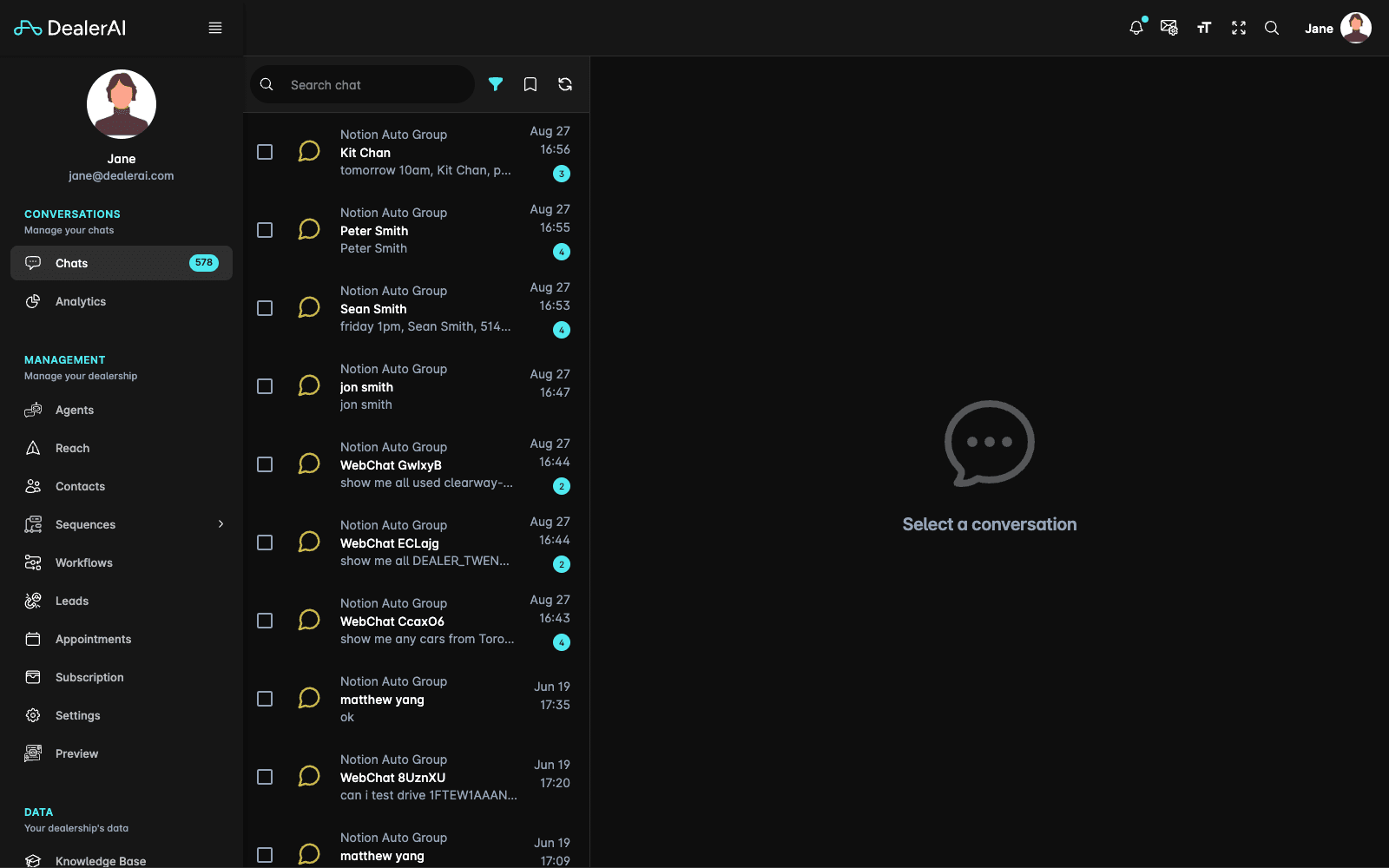
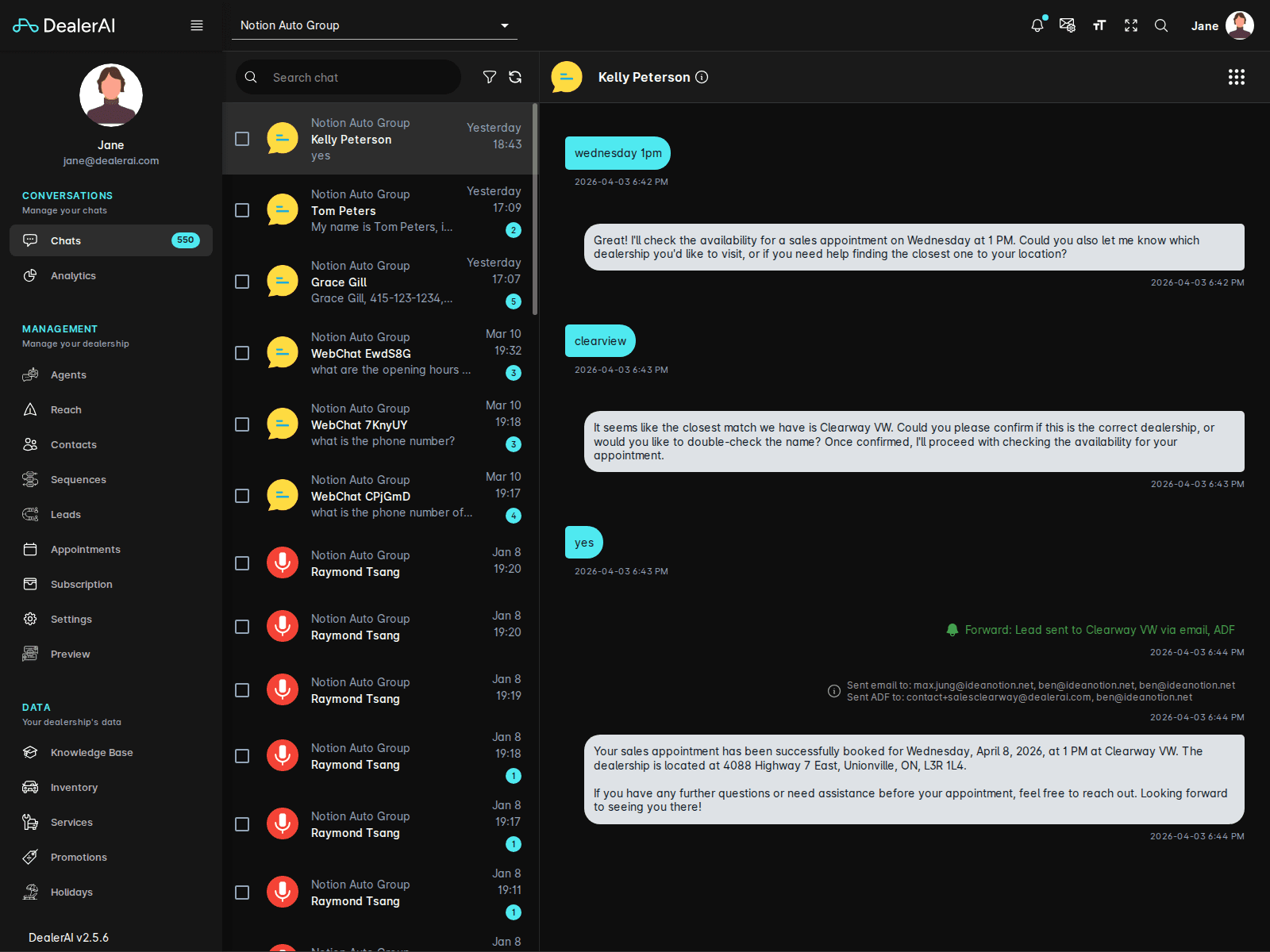
When a customer starts a conversation, DealerAI's AI agents handle the interaction automatically. The Conversations screen lets your team observe those exchanges, send manual messages, and review conversation history alongside customer details.
Navigating the Conversations List
The left panel shows all active and recent conversations for the selected dealership. Each conversation card displays:
- Customer name or phone number
- Channel icon (SMS, WebChat, Facebook, etc.)
- Last message preview and timestamp
- Status indicator (active, waiting, resolved)
To switch between stores if your account has access to multiple locations, open the filter panel (the funnel icon above the chat list) and use the Dealers section. See How to filter chats and use saved views.
Conversation Detail
Clicking a conversation opens the full chat view:
- Message thread — the complete conversation history between the customer and the AI (or a staff member)
- Customer details popover — hover the information icon beside the customer's name to see their contact details and the state of the conversation (see below)
- Conversation history — previous interactions with the same customer
Customer details popover
The customer's name sits at the top of the conversation. Hover the information icon (ⓘ) next to it and a popover opens beside the name with everything known about the person and the conversation:
| Field | What it shows |
|---|---|
| Name | The customer's full name. If they're linked to a contact record, the name is a link through to that contact. |
| Their email address, click-to-compose. | |
| Phone | Their phone number, click-to-call. |
| Incoming | The page the conversation started from. The arrow icon opens that URL in a new tab — useful for seeing which vehicle or landing page prompted the enquiry. |
| Assigned Agent | The staff member the conversation is assigned to, with their email. |
| Take Over Agent | The staff member who has taken the conversation over, if anyone has. |
| Sequence | The outbound sequence the conversation is enrolled in, if any. |
| Status | Whether the conversation is Active, Paused, or Ended. Visible to DealerAI administrator roles. |
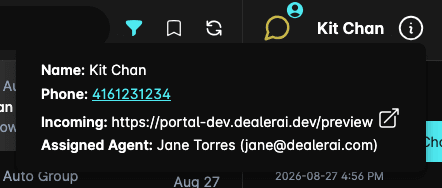
Rows are only shown when there's something to show, so a popover on a quiet conversation is shorter than the table above — a chat with no phone number on file simply has no Phone row.
If the conversation came in as an ADF lead, the provider it originated from is shown above the name. When UTM tracking is enabled, the UTM Source, Medium, Campaign, Term, and Content values captured with the conversation are listed at the bottom.
The popover is hover-only, and it stays open while your pointer is over it — so you can click the email, phone, or Incoming link inside it without it closing on you.
The speed dial menu
Every per-conversation action lives in the speed dial menu. Hover the grid icon in the top-right corner of the conversation and the menu fans out as a stack of labelled buttons. You can also click the icon to pin the menu open.
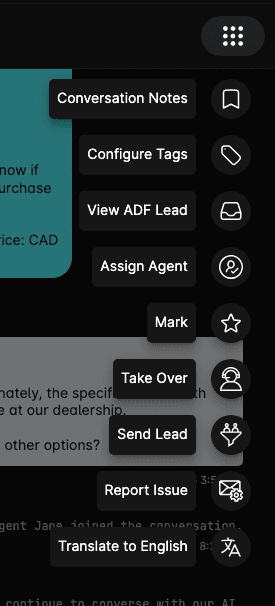
The actions available depend on the conversation, your role, and the channel — items that don't apply are hidden rather than disabled, so your menu may be shorter or longer than the one above.
| Action | What it does |
|---|---|
| Conversation Notes | Opens the notes panel to leave internal context for your team. A count beside the label shows how many notes the conversation already has. See How to add conversation notes. |
| Configure Tags | Applies conversation tags so the chat can be found later from the Tags filter. |
| Assign Agent | Assigns the conversation to a staff member. |
| Mark / Unmark | Flags the conversation so it stands out, and makes it findable through the Marked option in the filter panel. The label flips to Unmark once it's flagged. |
| Take Over | Hands control of the conversation from the AI to you. See How to take over and pass back a conversation. |
| Pass Back | Returns control to the AI. This replaces Take Over once you hold the conversation. |
| Take Over from agent name | Takes a conversation over from the colleague currently handling it. |
| Unenroll | Removes the conversation from its outbound sequence, stopping the remaining sequence messages. Only shown while the conversation is in an active sequence. |
| Send Lead | Pushes the customer's details to your CRM as an ADF lead. See How to send a lead to CRM. |
| IP Address | Opens a panel with the customer's IP address and the location derived from it — city, state or province, country, continent, postal code, and timezone. |
| Report Issue | Reports the chat to DealerAI support as an issue, with the conversation attached. |
| Translate to English / Show Original | Translates the whole thread into English, and switches back to the customer's own words. |
Report Issue only appears if your user is set up with DealerAI support access, and IP Address only appears once an IP has actually been captured for the conversation.
Taking Over a Conversation
The AI handles a conversation until a human explicitly takes it over. Choose Take Over from the speed dial menu and the message box appears at the bottom of the thread — until then there's nothing to type into, because the AI is the one replying.
The AI does not start replying again on its own. It stays quiet until you explicitly choose Pass Back, no matter how long the conversation sits idle. If you take a conversation over and walk away without passing it back, the customer's next message goes unanswered.
To send a manual message:
Taking a conversation over also assigns it to you, so it's clear to the rest of the team who is handling it. For the full walkthrough, see How to take over and pass back a conversation.
You can send more than plain text: links and call-to-action buttons can go back to the customer, and vehicles from your inventory can be inserted into an email as a vehicle card. See How to send links and vehicle cards.
Channel Icons
| Icon | Channel |
|---|---|
| Chat bubble | WebChat (embedded widget) |
| Phone | SMS |
| Facebook logo | Facebook Messenger |
| Instagram logo | Instagram Direct Message |
| Envelope | |
| Handset | Voice Call |
Filtering and Search
The funnel icon above the chat list opens the Filter Chats panel, where you can narrow the list by dealership, read status, channel, conversation status, date range, assigned agent, tag, source provider, and sequence — plus a Search chat box.
Search chat searches the message content itself, not just the customer's name and phone number. Every message in every conversation is indexed, so searching a word the customer or the AI used — a model name, a stock number, a street — finds the conversations it was said in.
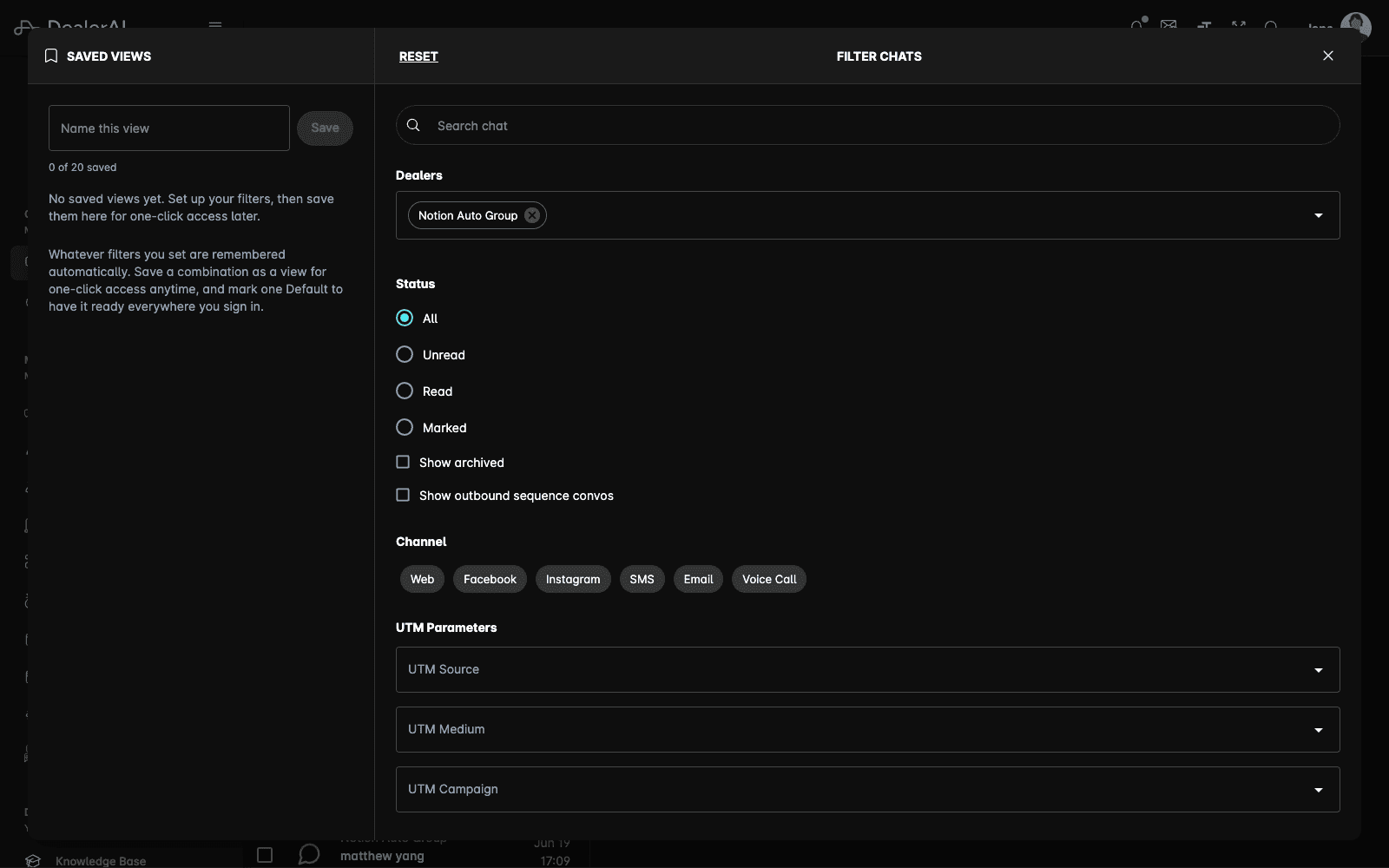
Filter combinations can be saved as saved views and reapplied in one click from the bookmark icon next to the funnel. Filters persist between visits, and hovering the funnel icon summarizes everything currently applied along with how many chats are showing.
For the full breakdown of every filter section and how saved views work, see How to filter chats and use saved views.
Real-Time Updates
The conversation list updates in real time. New messages and status changes appear automatically without refreshing the page.