

How to filter chats and use saved views
Narrow the chat list with the filter panel, then save filter combinations as saved views for one-click access.
The Chats screen (Conversations → Chats) can show a lot of traffic at once. The filter panel narrows the chat list down to the conversations you care about, and saved views let you keep those filter combinations around so you don't have to rebuild them every day.
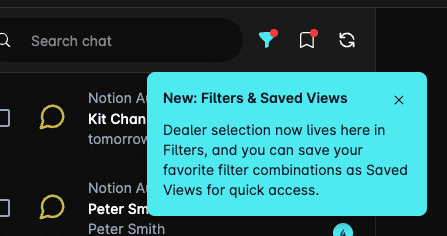
Dealer selection lives inside the filter panel. If you're looking for the dealership selector that used to sit above the chat list, open the filter panel and use the Dealers section.
Open the filter panel
Above the chat list you'll find two icons:
| Icon | What it does |
|---|---|
| Funnel | Opens the Filter Chats panel. It's outlined when no filters are applied and filled in when at least one is. |
| Bookmark | Opens Saved Views quick access. It's filled in when a saved view is currently active. |
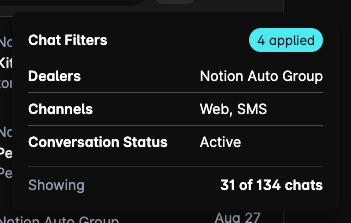
Hover the funnel icon to see a summary of what's currently applied without opening the panel — it lists each active filter, the saved view in use (if any), and how many chats are showing out of the total.
Filter the chat list
Click the funnel icon to open the panel. Saved Views sits on the left and the filter form on the right.
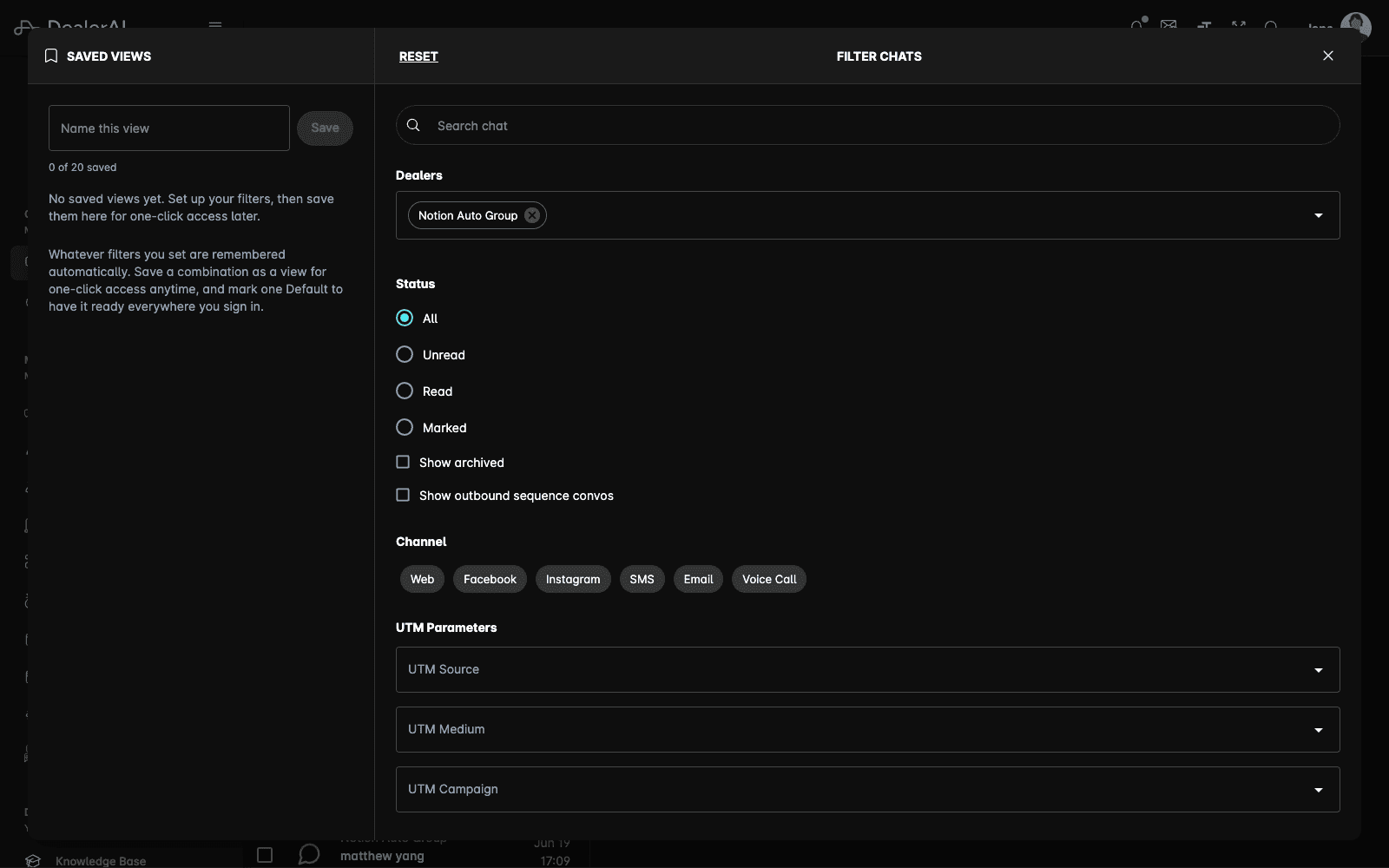
Each section heading shows a small count of how many values you've selected in it, so you can see at a glance where your filters are coming from. Reset in the panel header clears everything.
Search
Type in Search chat to find conversations. It matches the customer's name and phone number, and it also searches the words inside the conversation itself — every message in every conversation is indexed, so a model name, a stock number, or a street the customer mentioned will find the chat it was said in.
Search covers the full message history, not just recent or open conversations. Combine it with the Date section when a common word matches more chats than you want to read through.
Dealers
Select one or more dealerships. This is where you switch between stores if your account has access to more than one. When several dealers are selected, options elsewhere in the panel (tags, agents, sequences) are labelled with the dealership they belong to.
Status
Choose how the list treats read state:
- All — every conversation
- Unread — conversations with messages you haven't opened
- Read — conversations you've already opened
- Marked — conversations you've flagged
Two checkboxes sit underneath:
- Show archived — include archived conversations in the list
- Show outbound sequence convos — include conversations started by an outbound sequence
Channel
Filter by where the conversation came from: Web, Facebook, Instagram, SMS, Email, Voice Call, and Emulator. Click a chip to include that channel; click it again to remove it.
Channels your dealership has hidden don't appear here. If you expect a channel chip and don't see it, check your channel visibility settings.
Conversation Status
Filter by where the conversation has got to:
- Ended — the conversation is finished
- Active — the AI is handling it now
- Paused — a staff member has taken over and the AI is quiet
- Outbound Sequence Replied — the customer replied to an outbound sequence
Date
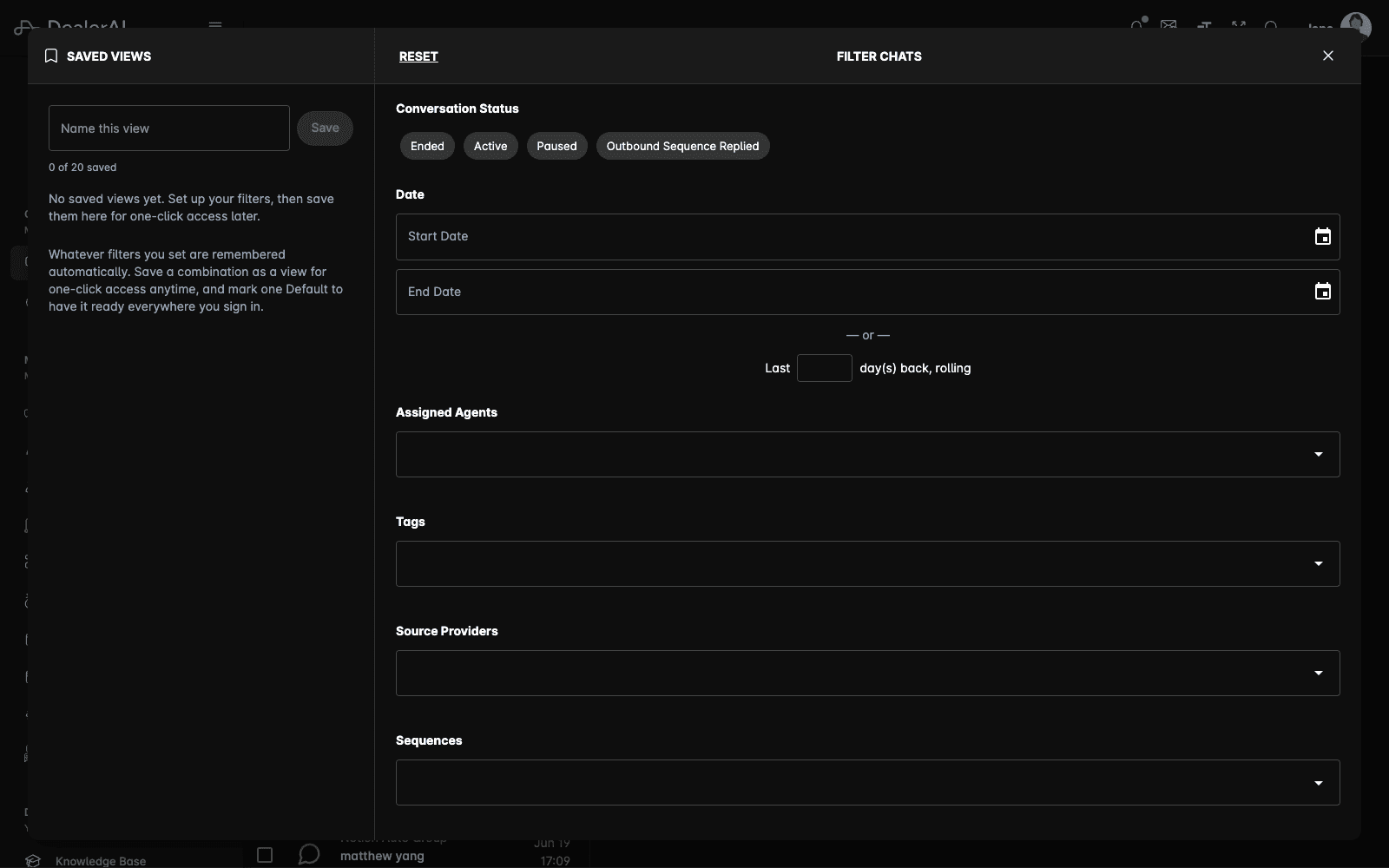
You can filter by date in one of two ways:
- Start Date and End Date — a fixed calendar range. The pickers constrain each other, so you can't pick an end date earlier than the start date.
- Last N day(s) back, rolling — a range relative to today.
Use Clear Date Filter to remove a rolling range.
A rolling range is stored as the expression itself, not as calendar dates. A saved view set to "last 14 days" still means the last 14 days whenever you load it, rather than freezing to the dates that were current when you saved it.
Assigned Agents, Tags, Source Providers, and Sequences
The remaining sections are multi-select lists:
- Assigned Agents — staff the conversation is assigned to
- Tags — conversation tags applied by your team or by the AI
- Source Providers — the provider that originated the conversation
- Sequences — the outbound sequence a conversation belongs to
UTM Parameters
If UTM tracking is enabled for your dealership, an extra UTM Parameters section sits between Channel and Conversation Status. It lets you filter by UTM Source, UTM Medium, and UTM Campaign — useful for seeing which campaign drove a set of conversations.
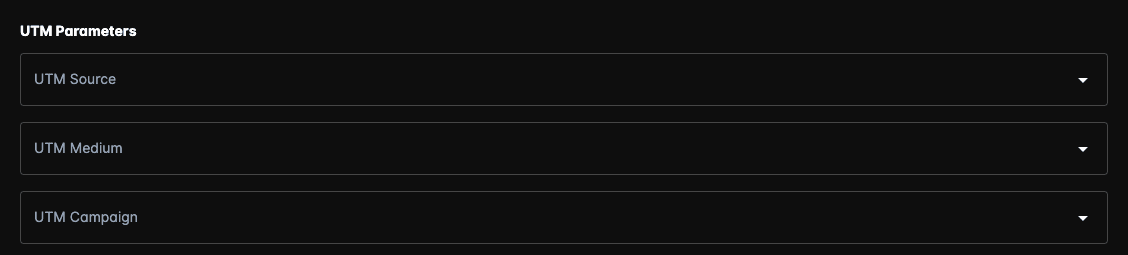
Each one takes a single value, chosen from the UTM values configured for your dealership. When you have several dealers selected, their lists are combined into one alphabetical set.
UTM filters are only shown when they're enabled for your dealership. If you don't see this section, contact your DealerAI representative to have it turned on.
Your filters are remembered
Filters stay applied between visits. They're stored in your browser for the device you're using, and also saved to your user profile so a brand-new device or browser can pick up where you left off.
Because the active copy is per browser, clearing your browser data — or switching to a private window — can reset the filter panel to your saved profile defaults.
Save a filter combination as a view
Saved views hold a full set of filters under a name you choose.
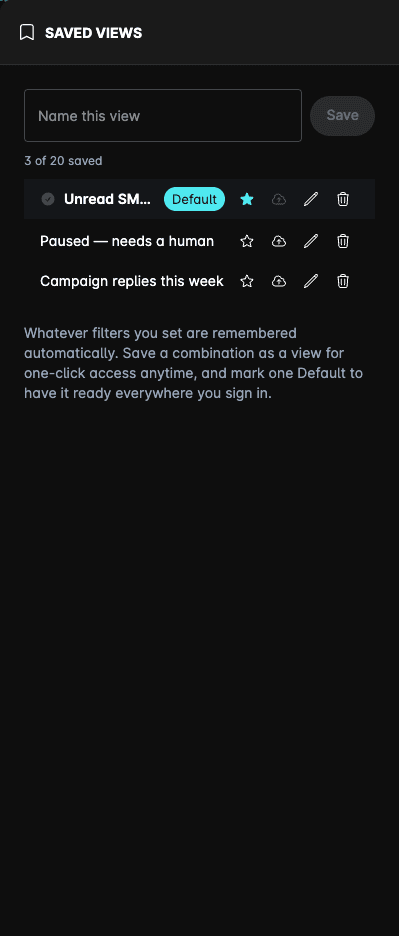
The counter under the name field shows how many views you've saved out of your dealership's limit (20 by default). Once you hit the limit, the name field and Save are disabled until you delete a view.
Manage saved views
Each view in the list has controls for:
- Load — click the view to apply its filters to the chat list. The view in use is marked as currently active.
- Set as default — the view applied automatically when you don't have anything else in progress. The default view is labelled with a Default chip.
- Update with current filters — overwrite the view with whatever is applied right now. This is unavailable when the view already matches your current filters.
- Rename — change the name in place.
- Delete — remove the view. Deleting asks you to confirm first.
Load a view without opening the panel
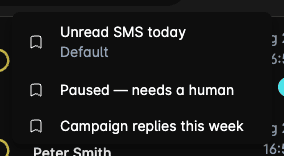
The bookmark icon above the chat list opens a quick-access list of your saved views, so you can switch views in one click.
Tips
- Save a view per routine — "Unread SMS today", "Paused, needs a human", "Campaign replies this week" — rather than rebuilding filters each morning.
- Set your most-used view as the default so the Chats screen opens ready to work.
- If the chat list looks emptier than you expect, hover the funnel icon: the summary shows every filter that's narrowing the list, including a saved view you may have loaded earlier.
- Reset clears all filters at once when you want to start from the full list again.