

How to send links and vehicle cards
Send links and call-to-action buttons back to the customer, and insert inventory vehicles into an email as a vehicle card.
When you've taken a conversation over you can send the customer more than plain text. Email and webchat conversations get a full composer with formatting, links, call-to-action buttons, and vehicles pulled straight from your inventory.
The composer only appears once you hold the conversation. Choose Take Over from the speed dial menu first — see How to take over and pass back a conversation.
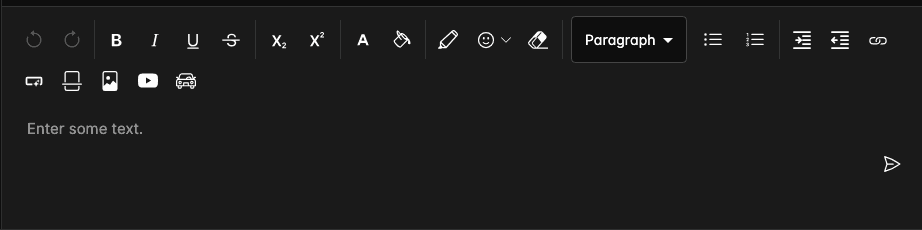
What the composer gives you depends on the channel, because each one can carry a different amount of formatting:
| Channel | Composer |
|---|---|
| The full toolbar above — formatting, links, call-to-action buttons, images, YouTube embeds, horizontal rules, and vehicle cards. | |
| Webchat | A reduced toolbar: formatting, Insert Link, and vehicle cards. No call-to-action buttons, images, or embeds. |
| SMS, Facebook, Instagram, voice | A plain message box, because those channels can't carry rich content. |
Everything on this page works in an email. If you're in a webchat conversation and can't find Insert Button or the image and video controls, that's why — the channel doesn't support them.
Send a link
Links you send are clickable for the customer.
You can also just paste or type a URL or an email address — the composer recognizes it and links
it automatically, with email addresses becoming mailto: links.
To edit or remove a link later, put your cursor in the linked text and the link editor appears above it.
Send a call-to-action button
For emails, a styled button usually gets clicked more than a bare link — useful for "Book a test drive" or "View this vehicle".
Insert a vehicle as a vehicle card
Rather than describing a vehicle and pasting a link, you can drop the vehicle itself into the message. It arrives as a vehicle card — photo, title, key details, and a link through to the listing — inline in the email.
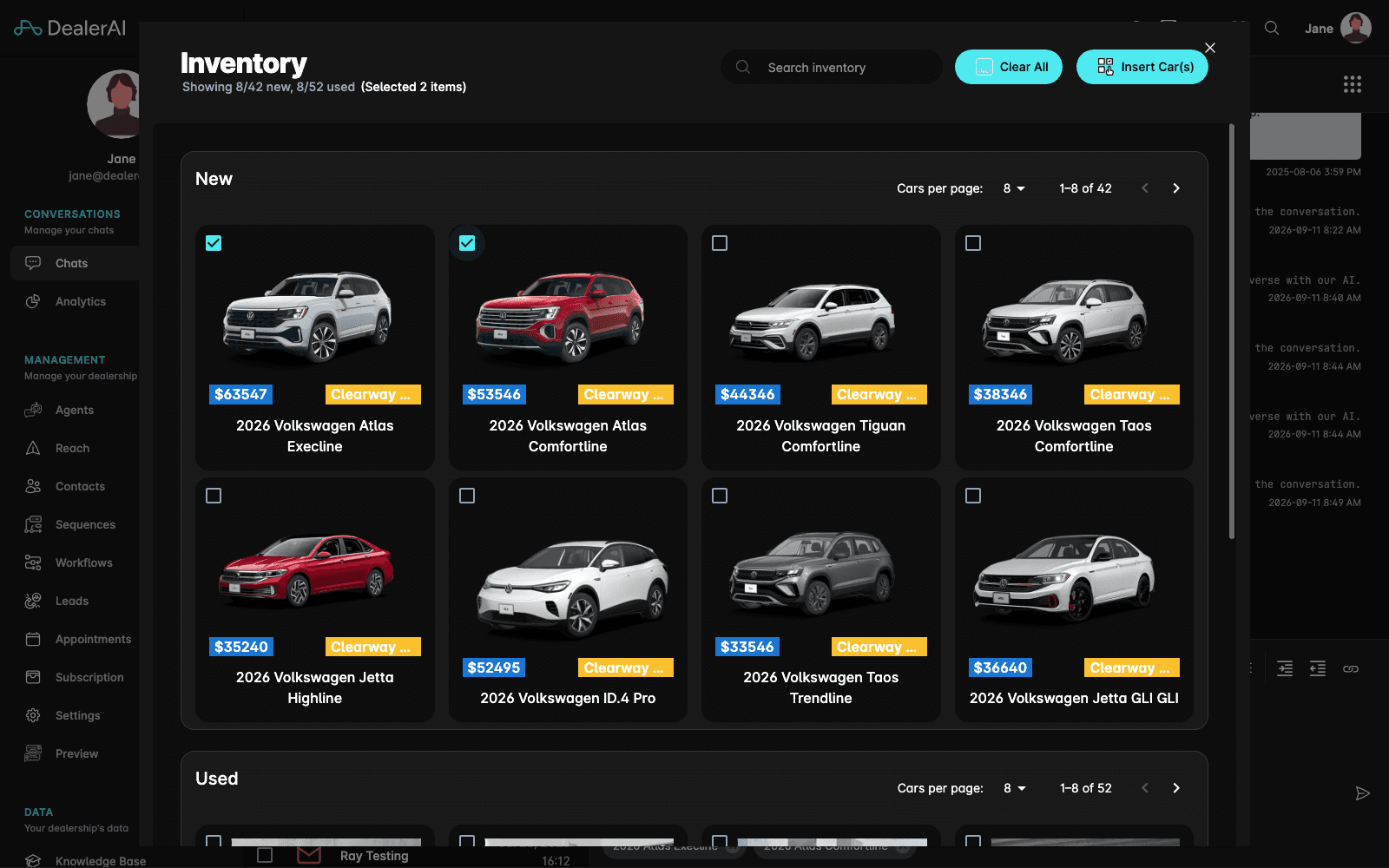
Clear All resets the selection, and the count beside Showing tells you how many vehicles are currently ticked.
The card is built from live inventory data at send time, so the price, mileage, and photos the customer sees are the current ones rather than whatever you copied by hand.
Add vehicle appears only when the conversation belongs to a dealership with inventory available. If you don't see it, check that your inventory feed is connected in Settings.
Other things you can add
The email composer also supports:
- Images — attach an image inline in the message.
- YouTube embeds — drop in a video, such as a walkaround for the vehicle you're discussing.
- Horizontal rules — break a longer email into sections.
- Standard formatting: bold, italic, underline, lists, headings, and alignment.
Tips
- Send two or three vehicles at most in one message. A wall of cards is harder to act on than a short list with a sentence about why each one fits.
- Put the link in a call-to-action button when there's one obvious next step, and use a plain link when it's just supporting detail.
- Check the vehicle is still in stock before you send — the card reflects inventory at send time, so a vehicle that sells later will still show as it was when the customer opens the email.