

How to build sequence steps
Add, order, and configure the steps that make up a sequence, and set the goal it works towards.
The Steps tab is where a sequence is actually built. The flow diagram on the left shows the steps in order; the panel on the right edits whichever one you clicked. Drag the divider between them to resize.
Add a step
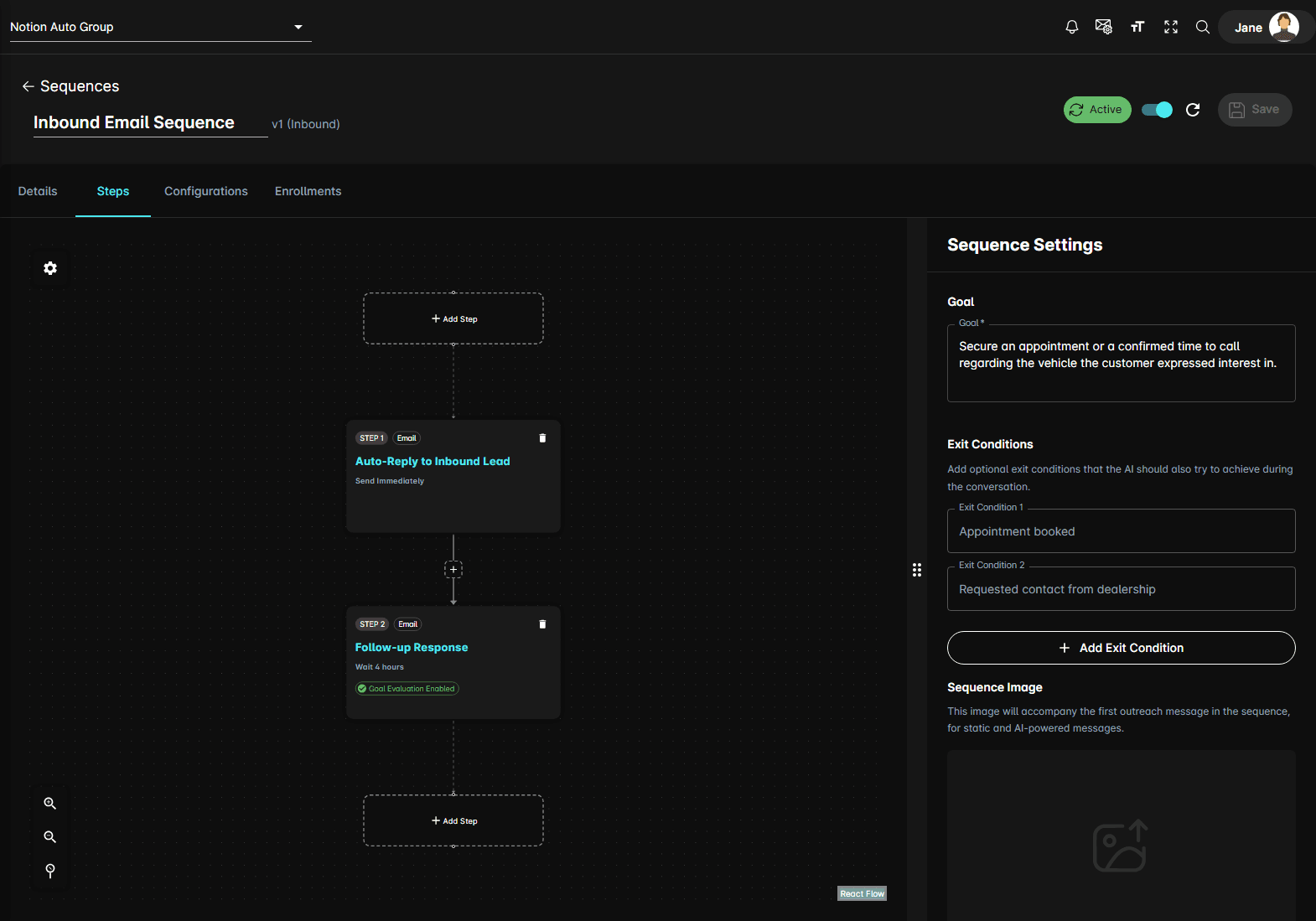
Each node in the flow carries its number, its channel, what it does, its timing, and a Goal Evaluation Enabled chip when the evaluator is on. Click the node to open it for editing, the bin icon to delete it, or the + on the connector between two nodes to insert a step there. On a multi-channel sequence a node also carries a + of its own, which adds an alternative channel step alongside it.
What a step can do
| Action | What it does |
|---|---|
| Send a Message | Sends a pre-written message to the contact |
| AI-Powered Message | Lets the agent personalise the message to the contact |
| Follow-up Response | Sends an AI follow-up to the contact |
| Send Lead | Sends lead information to your team |
| Auto-Reply to Inbound Lead | Automatically responds to an inbound lead. Inbound sequences only |
| Trigger Hook Events | Fires the hook events you select, without sending anything |
| Wait | Pauses without sending, keeping the enrollment active so a reply during the wait is still handled by the sequence |
Two ordering rules apply:
- The first step of an outbound sequence cannot be a Follow-up Response — there is nothing yet to follow up on.
- Auto-Reply to Inbound Lead is only offered on inbound sequences, and only when every step before it is a Trigger Hook Events or a Wait.
Choose the channel
Message steps need a channel: SMS, Email, or Voice when voice is configured for the dealership.
- In single-channel mode every step uses the same channel.
- In multi-channel mode each step picks its own.
- On a sequence tied to an ADF provider the channel is locked, and the panel says so.
Set the timing
When to Send This Step answers "how long after the previous step should this run?"
- Delay waits a set amount of time — a Wait value and a Unit. Enter
0to send immediately. - Fixed sends at a particular Send At time of day.
Write the message
For Send a Message, the message box holds the text that goes out as written. For the AI-driven actions it holds an instruction — what the agent should say, not the words it should use.
- Subject appears on email steps and is required.
- Template variables like
{{ contact.firstName }}and{{ promotions | json }}pull live values in. A variable of the form{{ contextData.something }}is filled from a column in the CSV you enroll from — see enroll contacts. - The preview icon beside an email step opens a preview of that email.
- Email Signature on an email step drops the sign-off from that step's message.
Goal evaluation
Enable Step Evaluator asks the agent, before the step runs, whether the contact's replies have already achieved the goal. If they have, a lead is sent and the sequence ends there rather than carrying on messaging someone who has already said yes.
Hook events
After-Step Hook Events dispatch additional hook events once the step has run successfully. On a Trigger Hook Events step the field is called Hook Events instead, is required, and is the whole point of the step — give that step a Step Name so it reads clearly in the flow.
The picker groups events by provider and labels each one Event name (Provider).
Only providers the dealership has actually connected appear. If the list is empty, no integration is connected yet — connect one under Integrations first.
Supported events
| Provider | Event | What it does |
|---|---|---|
| DealerSocket CRM | DealerSocket Note Create On Step Start | Creates a note on the conversation in DealerSocket |
| DealerSocket CRM | DealerSocket Note Create On Step | Creates a note when the step executes |
| DealerSocket CRM | DealerSocket Note Create On Step Lead send | Creates a note when a lead is sent |
| Fortellis CDK CRM | Fortellis: Create Opportunity | Creates an opportunity in Fortellis/CDK |
| Fortellis CDK CRM | Fortellis: Create Activity | Creates an activity in Fortellis/CDK |
| Google Chat | Google Chat: Sequence Notification (Summary) | Posts a summary notification after the step completes |
| Google Chat | Google Chat: Sequence Notification (Include Message) | Posts a notification that includes the outbound message body |
| HubSpot | HubSpot: Sequence Enrollment | Sends a sequence enrollment timeline event |
| HubSpot | HubSpot: Timeline Event on Conversation Start | Posts a timeline event when the conversation starts |
| HubSpot | HubSpot: Timeline Event on Step | Posts a timeline event on each step |
| HubSpot | HubSpot: Timeline Event on Lead Sent | Posts a timeline event when a lead is sent |
| PSS CRM | PSS Follow-up On Conversation Start | Appends a follow-up when the conversation starts |
| PSS CRM | PSS Follow-up On Step | Appends a follow-up when the step executes |
| PSS CRM | PSS Follow-up On Lead Sent | Appends a follow-up when a lead is sent |
Two lead events can also be triggered from a step, and appear under each connected provider that supports them:
| Event | Available on | What it does |
|---|---|---|
| Lead Received | Google Chat, Microsoft Teams, Slack, Fortellis CDK CRM | Fires when a lead is received |
| Lead Update Disposition | Google Chat, Microsoft Teams, Slack, PSS CRM | Fires when a lead's disposition is updated |
Sequence Settings
The settings icon on the flow diagram opens Sequence Settings, which covers the sequence as a whole rather than one step:
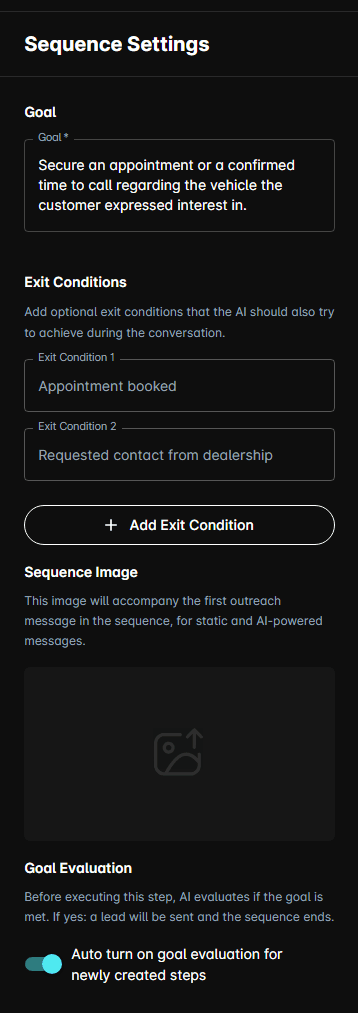
- Goal — what the sequence is trying to achieve, the same text you set when you created it
- Exit Conditions — two are fixed and always apply: Appointment booked and Requested contact from dealership. Add up to ten more of your own with Add Exit Condition
- Sequence Image — accompanies the first outreach message of the sequence, on both static and AI-powered messages
- Goal Evaluation — Auto turn on goal evaluation for newly created steps, so new steps get the evaluator without you having to remember
Tips
- Front-load the sequence. The first day matters far more than the fifth.
- Give the evaluator something to detect: a step that only says "just checking in" is hard to evaluate against a booking goal.
- Wait is the step to reach for when you want a gap in the sequence that the contact can still reply into.