

How to enroll contacts in a sequence
Enroll one contact or a whole CSV, watch their progress, and unenroll the ones you need to stop.
Outbound sequences only run against contacts you enroll. There are three ways in, and one tab that shows you where everybody is.
Enroll one contact
From the sequence:
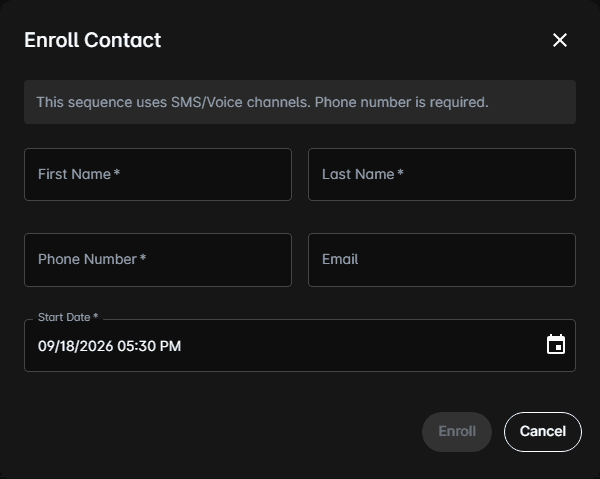
A banner at the top of the dialog says which field the sequence's own channels make mandatory — a phone number for an SMS or voice sequence, an email address for an email one.
Enroll is disabled while the sequence is inactive.
You can also go the other way, from the person rather than the sequence: open the contact and use Enroll in their header, or the enroll icon on their row in the Contacts list.
Enroll a batch from a CSV
Enroll Batch via CSV is disabled while the sequence is inactive.
What opens depends on whether the dealership has CSV mappings turned on.
With CSV mappings: the wizard
Enroll from a CSV walks through four steps:
| Step | What you do |
|---|---|
| Your file | Drop the CSV in and pick the column mapping that describes it |
| Schedule | Choose when the first message goes out, and whether to skip people already in this sequence |
| Preview | The server reads the file and reports how many rows will be enrolled and how many skipped |
| Confirm | Commit the run |
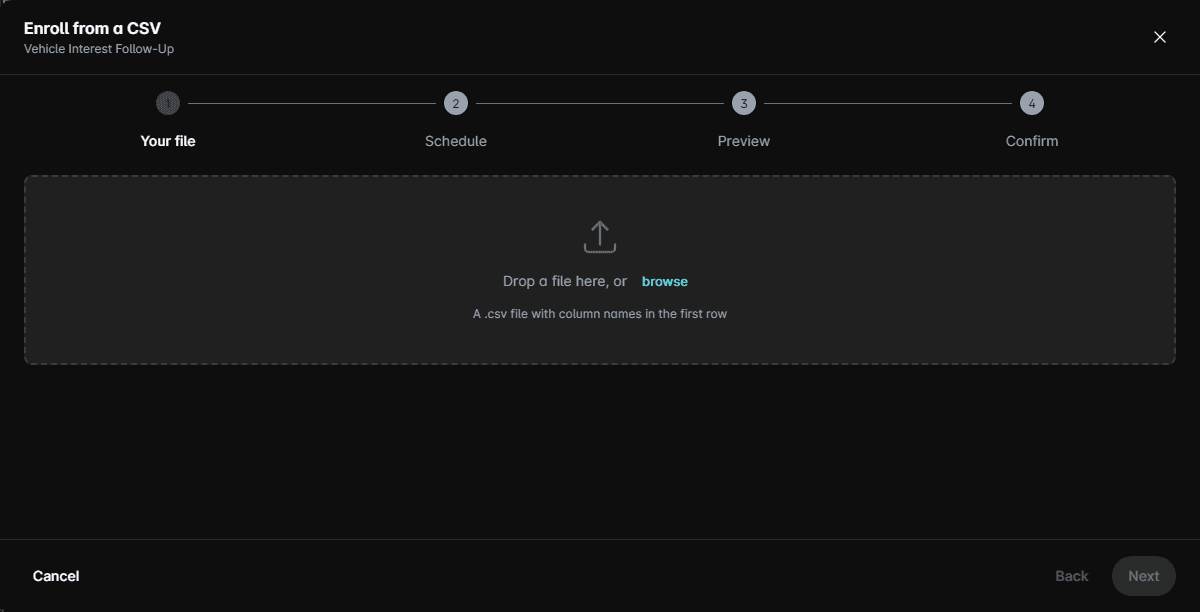
Leaving the start time empty starts right away. Large files do not all go out at once: people are messaged in groups of 50, ten minutes apart, and the Preview step shows exactly when the first and last message go out.
Preview is also where problems surface, before anything is sent — a column the sequence's messages need but the file doesn't have, a column name whose capitalisation doesn't match, or a file too large to send in one go.
Without CSV mappings: the dialog
Enroll Batch via CSV opens a single dialog. The header row it expects is printed at the top:
First name,Last Name,Cell,Email AddressIf any step's message uses a {{ contextData.something }} variable, that column is listed as an
additional required header underneath.
Choose the file, set a Start Date, and optionally turn on Do not enroll repeated contacts to skip anyone already enrolled. Any rows the upload rejects are listed as CSV Upload Errors on the Details tab.
Watch the enrollments
The Enrollments tab lists everyone in the sequence:
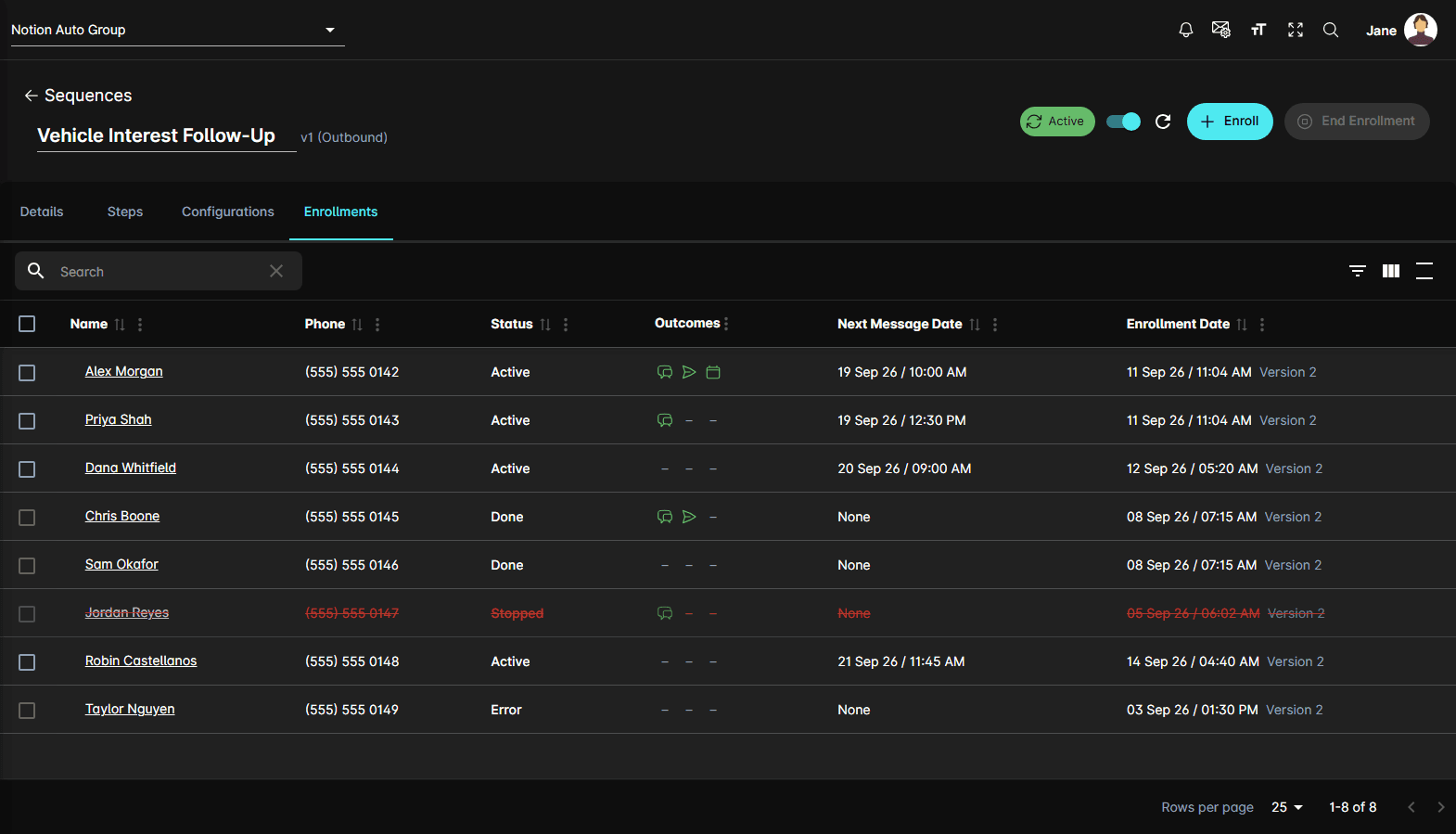
| Column | What it holds |
|---|---|
| Name | Opens the contact record |
| Phone | The number being messaged |
| Status | Active, Done, Stopped, or Error |
| Outcomes | Three markers — whether they replied, whether a lead was sent, and whether an appointment was booked. A dash means it hasn't happened |
| Next Message Date | When the next step runs, or None |
| Enrollment Date | When they were enrolled, and the sequence version they are running |
Stopped enrollments are struck through in red.
End an enrollment
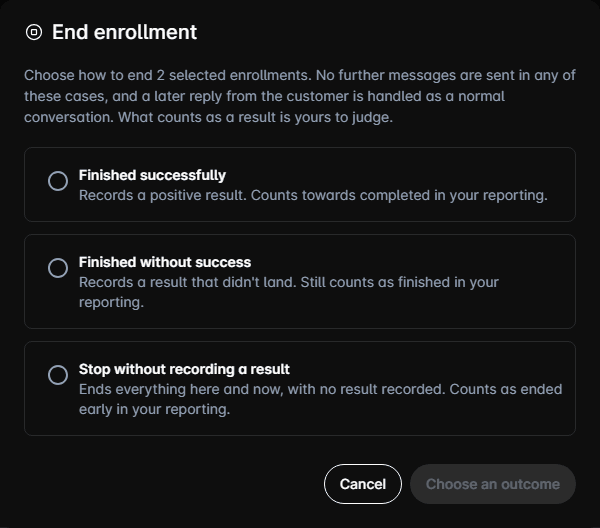
Ending an enrollment stops the remaining steps for those contacts. It does not delete the contact or their history, and a later reply from the customer is handled as an ordinary conversation.
Choosing an outcome
The dialog asks you to record how the enrollment ended, because the answer feeds your reporting. No further messages are sent in any of the three cases — the difference is what the numbers say afterwards.
| Outcome | Records |
|---|---|
| Finished successfully | A positive result. Counts towards Completed |
| Finished without success | A result that didn't land. Still counts as finished |
| Stop without recording a result | Nothing. Counts as Ended early |
What counts as a result is yours to judge — the portal doesn't infer it.
The same dialog opens from the Enrollments card on a contact's own record, so an enrollment ended there is recorded identically.
Notes
- A contact can only be in one sequence at a time. Enrolling someone who is already enrolled elsewhere fails, and the message says so.
- Enrollments stay pinned to the sequence version they started on, so saving a new version of a sequence does not change what people already running it will receive.