

How to manage CSV mappings
Describe the shape of your dealership's CSV exports once, then reuse that description every time you enroll from a file.
A CSV mapping tells the portal what the columns in one of your files mean — which one is the first name, which one is the mobile number, and which ones feed the variables your sequence messages use. Save it once and every CSV enrollment from that kind of file can reuse it.
Open it from CSV Mappings, under Sequences in the sidebar.
The list
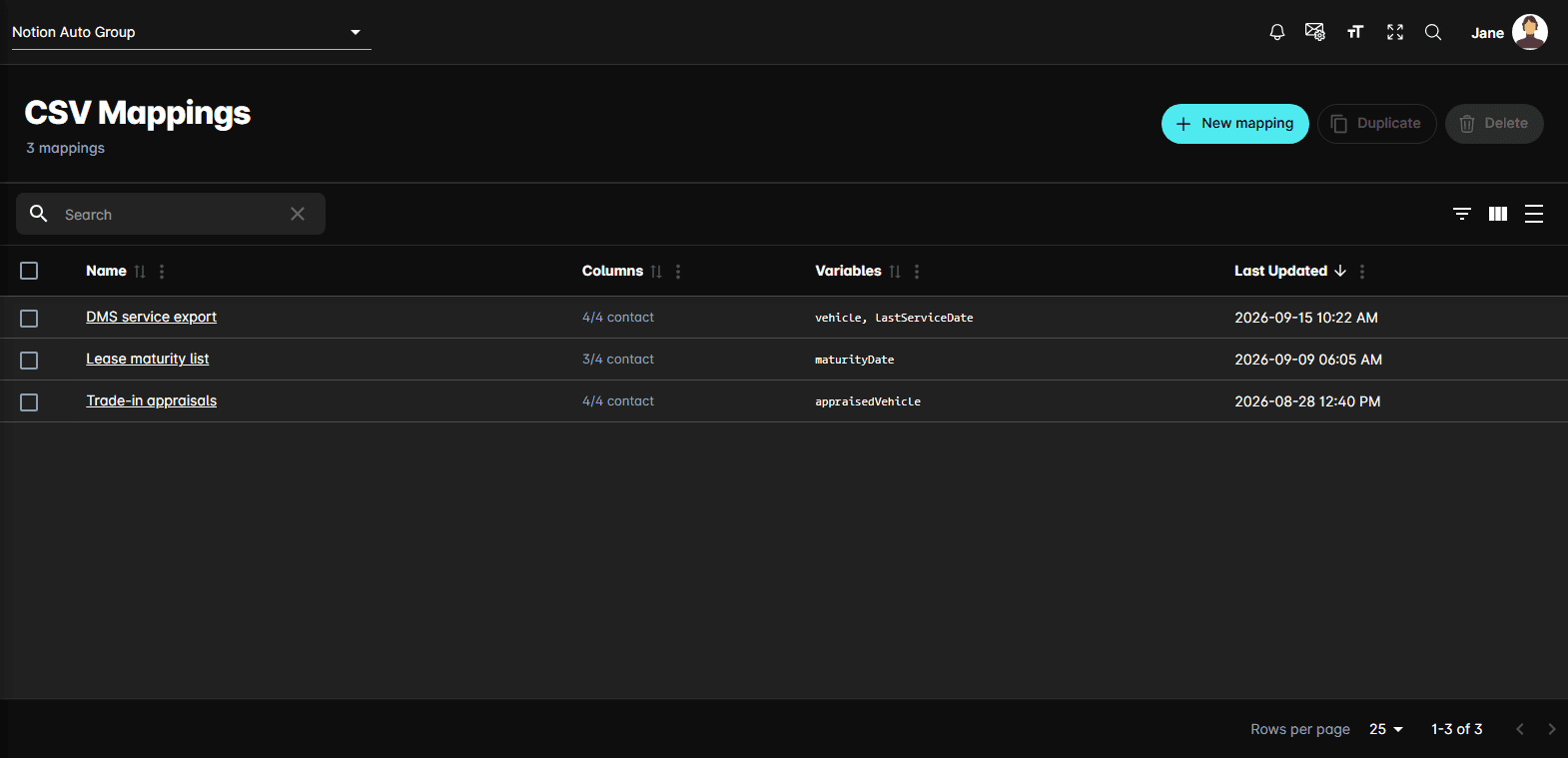
| Column | What it holds |
|---|---|
| Name | Opens the mapping. A warning triangle means it is missing a required field and can't be used to enroll yet |
| Columns | How many of the four contact fields are mapped |
| Variables | The variable names this mapping supplies |
| Last Updated | When it last changed |
Mappings belong to the dealership, not to one sequence, so the same mapping serves every sequence fed by the same export.
Above the table, New mapping creates a mapping from scratch.
Create a mapping
.csv whose first row is the column names.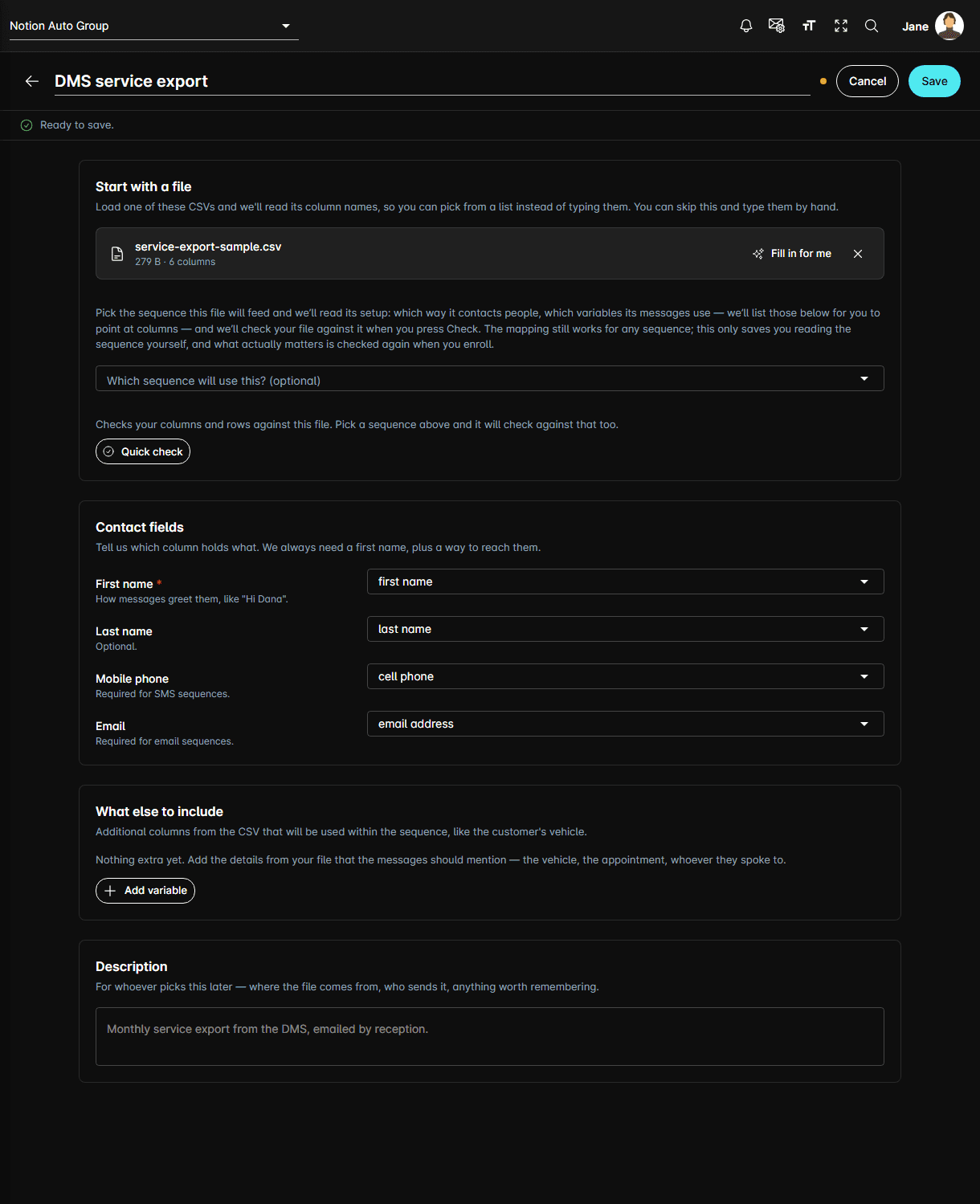
Contact fields
| Field | Required? |
|---|---|
| First name | Always. It's how messages greet the person |
| Last name | Optional |
| Mobile phone | Required for SMS sequences |
| Required for email sequences |
A mapping needs a first name and at least one of phone or email before it can be saved and used.
What else to include
Variables cover everything beyond the contact themselves. If a step's message says
{{ contextData.vehicle }}, add a variable named vehicle and point it at the column that
holds it. A default value fills the gap when a row leaves that column empty.
A variable listed here is required per row, so the preview step of an enrollment will flag rows that are missing it.
Description
An optional note about where the file comes from — monthly service export from the DMS, emailed by reception — so the next person picks the right mapping.
Test a mapping
Once a sample file is loaded, a Quick check button appears under it, still inside the Start with a file card. Click it and the counts appear alongside: how many rows are ready, how many have a warning, and how many would be skipped.
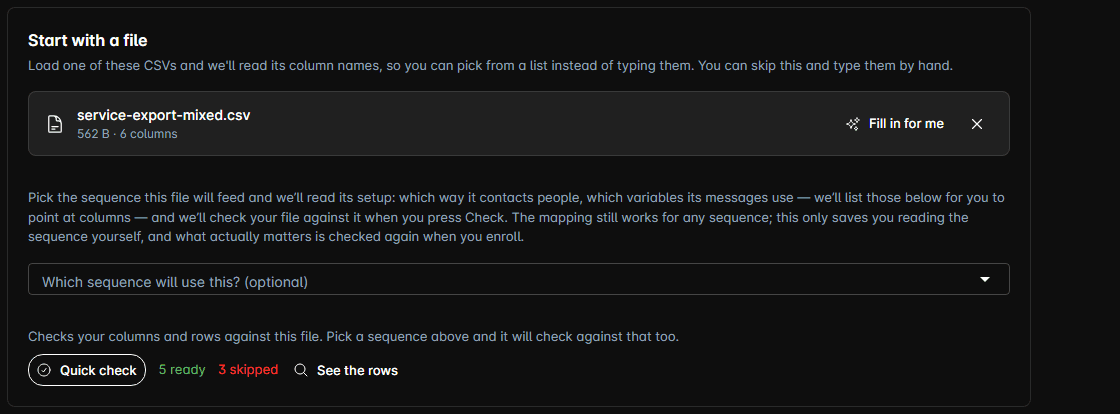
See the rows opens a read-only view of what it read, row by row, so you can see which ones were flagged and why. The counts are indicative: when you actually enroll, the server also checks prior enrollments, unsubscribes and channel eligibility, so some rows counted ready here may still be skipped then.
If anything is wrong with the setup, a notice appears under the counts — a column the mapping names that the file doesn't have, a variable the sequence needs that the mapping doesn't supply, or a capitalisation mismatch between the two, which would otherwise send the message with a blank where the value should be.
Naming a sequence in Which sequence will use this? widens the check to that sequence's requirements: its channels, and the variables its messages actually use.
Edit, duplicate, and delete
The ⋮ menu in the editor header, on a mapping that has been saved, offers:
- Duplicate — a copy to adjust for a similar file
- Undo my changes — discard unsaved edits
- Delete — remove the mapping
An unsaved-changes dot appears beside the name while edits are pending.
Notes
- Mappings are dealership-wide, and are not tied to the sequence you created them from.
- Deleting a mapping that an enrollment wizard has open makes that wizard ask for another one at the preview step.