

How to configure sequence settings
Choose the agent that handles replies, override where leads go, and inject extra instructions into the prompt.
The Configurations tab covers what happens around the steps: which agent takes over a conversation, where the leads it produces are sent, and what extra instruction the agent is given for enrolled contacts.
Open the sequence and click Configurations.
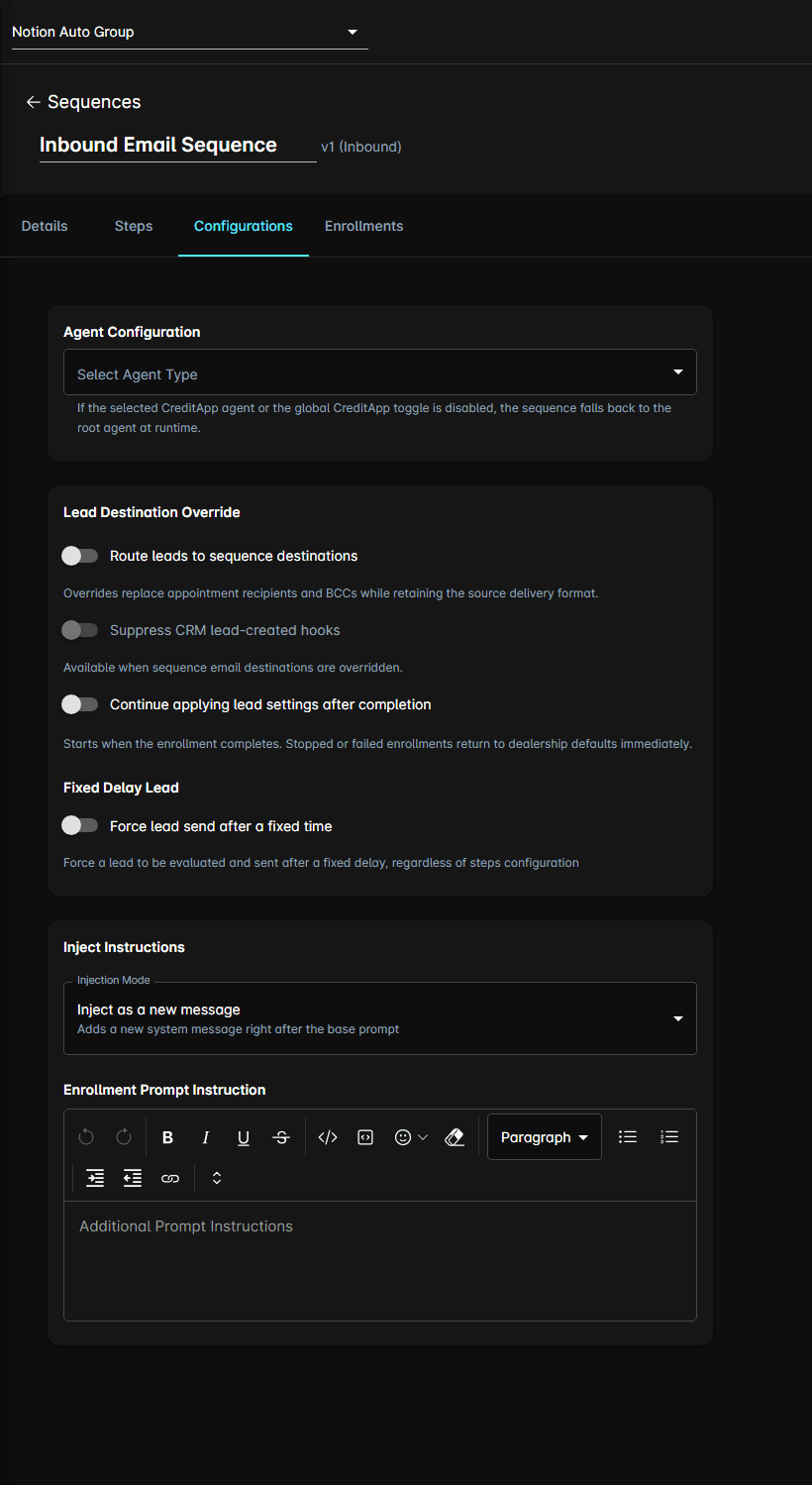
Agent Configuration
Select Agent Type decides which agent handles the conversation once a contact replies.
- Base Agents — Sales, Trade In, Test Drive, Lease Return, Service, and Parts, plus None
- Custom Agents — the agents built for this dealership under Agents
- CreditApp Agents — integration agents, listed when the dealership has any
Lead Destination Override
By default a sequence's leads follow the dealership's own lead settings. Turn on Route leads to sequence destinations to send this sequence's leads somewhere else instead.
An override replaces the appointment recipients and BCCs; the delivery format of the source is kept.
Two switches sit under it:
- Suppress CRM lead-created hooks stops this sequence's leads firing the CRM hooks. It is only available while the override is on
- Continue applying lead settings after completion keeps this sequence's lead routing in force for a Maximum duration after the enrollment finishes. Stopped or failed enrollments go back to the dealership defaults immediately
Fixed Delay Lead
Force lead send after a fixed time sends a lead after a set Delay, whatever the steps are doing. Use it when a sequence should always produce a lead within a known window.
Run lead extraction when processing fixed lead send decides whether the agent re-reads the conversation for lead details at that point, rather than sending what it already has.
Inject Instructions
Enrollment Prompt Instruction is extra guidance handed to the agent for every contact enrolled in this sequence — context the steps themselves don't carry. Write it in the rich text editor, which also offers the same prompt variables and vehicle references used elsewhere in the portal.
Injection Mode controls where it lands. Inject as a new message adds it as a system message directly after the base prompt.
Notes
- These settings belong to the sequence, not the dealership. Two sequences can route leads to different teams.
- Saving here counts as saving the sequence: if contacts are enrolled on the current version, a new version is created and they keep running the old one.