

Sequences
Build, activate, and monitor the automated message sequences the agent runs against your contacts.
A sequence is an ordered set of steps the agent runs against a contact — messages, waits, lead sends, and hook events — with a goal it is trying to reach. Outbound sequences go out to people you enroll. Inbound sequences run when an ADF lead arrives.
Open it from Sequences in the sidebar.
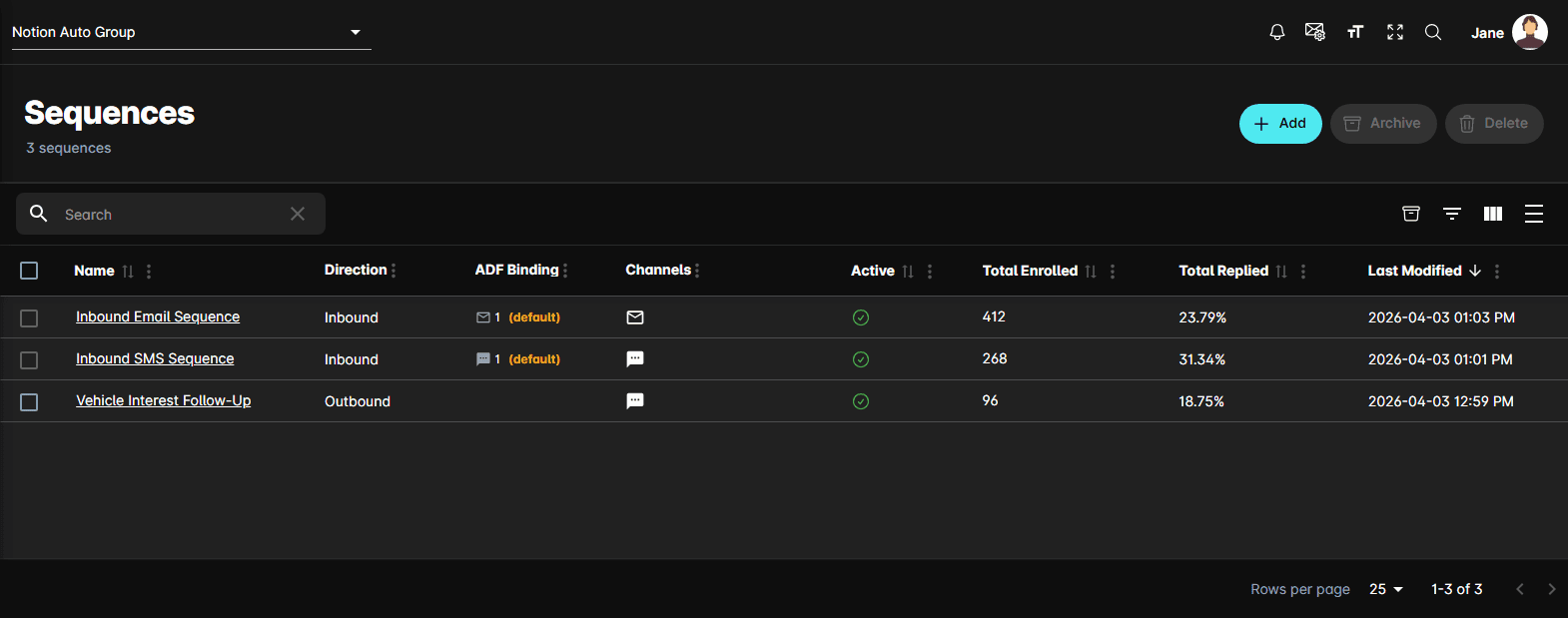
The table
| Column | What it holds |
|---|---|
| Name | Opens the sequence |
| Direction | Inbound or Outbound |
| ADF Binding | For inbound sequences: how many ADF providers point at it, with (default) when it is the fallback |
| Channels | An icon per channel the sequence uses — SMS, Email, Voice |
| Active | A green tick when the sequence is running, a red mark when it isn't |
| Total Enrolled | How many contacts have ever been enrolled |
| Total Replied | The share of those who replied, as a percentage |
| Last Modified | When the sequence last changed |
Toolbar actions
Above the table, on the right:
- Add — opens Choose a Sequence Template, the first step of creating a sequence
- Archive — takes the checked sequences out of the working list
- Delete — removes them permanently
The icons beside them toggle the archived view, the filter row, which columns show, and row density.
Archiving and deleting
Archiving is the reversible one. Check the sequences, click Archive, and they leave the list. Switch to the archived view with the box icon in the toolbar and the same button becomes Unarchive.
Delete is permanent: it removes the sequences and every related enrollment and enrollment history record, and cannot be undone. Contacts themselves are not deleted. Archive instead unless you are sure.
The sequence record
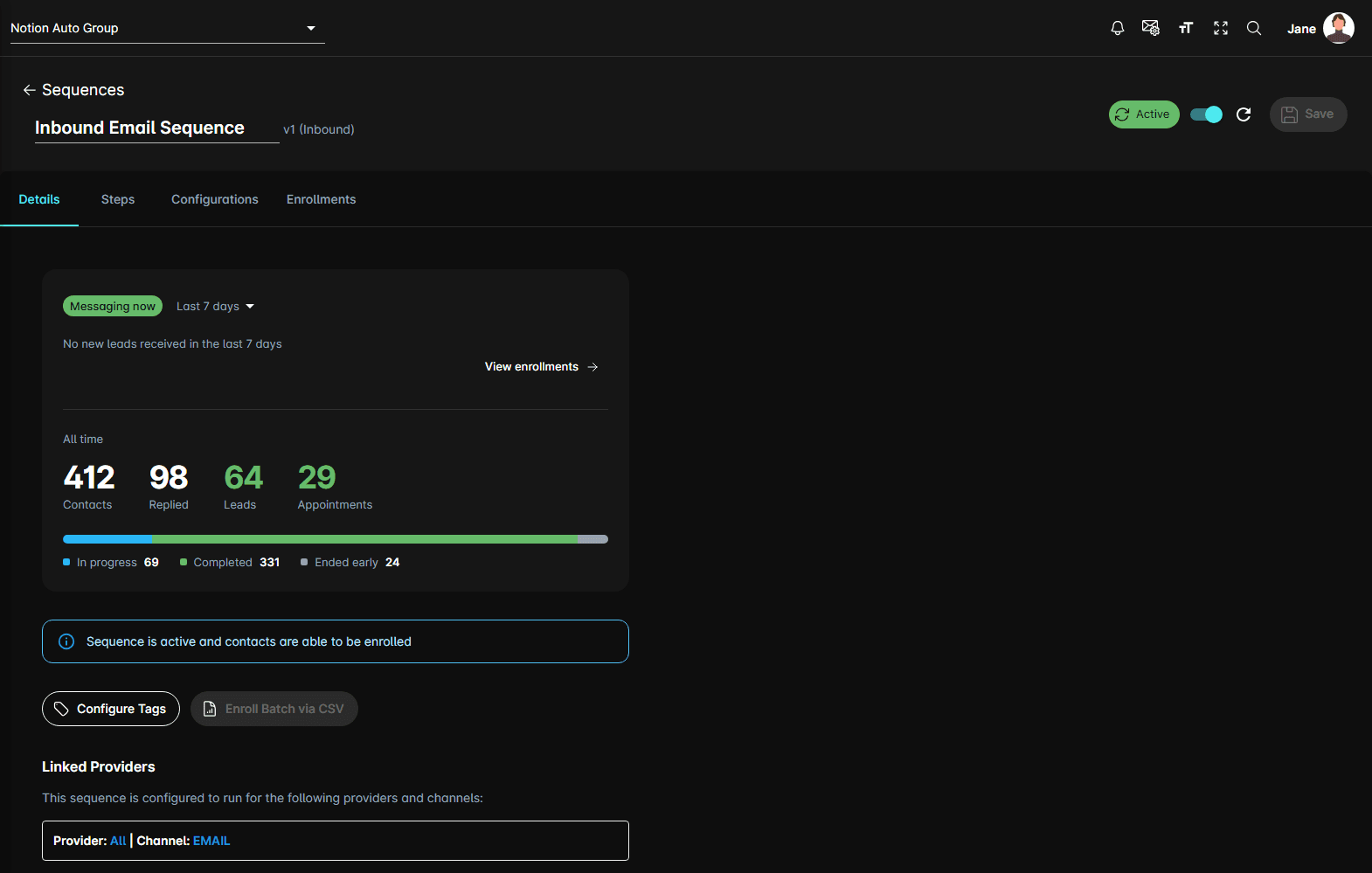
The header carries the name, the version (v3, and so on), the direction, an Active / Inactive switch, a refresh icon, and Save.
The switch is disabled until the sequence has at least one step, and confirms before it flips: disabling a sequence stops further messages and blocks new enrollments.
Five tabs sit under it:
| Tab | What it's for |
|---|---|
| Details | Performance reporting, tags, and CSV enrollment |
| Steps | The flow diagram and the step editor — see build sequence steps |
| Configurations | Agent, lead routing, and prompt injection — see configure sequence settings |
| Enrollments | Who is in the sequence right now — see enroll contacts |
| Enrollment History | A record of CSV enrollment runs. Administrators only |
The Details tab
A summary card sits at the top. The chip says what the sequence is doing right now:
| Chip | Means |
|---|---|
| Messaging now | Active, and messages are going out |
| Ready for new contacts | Active, but nobody is mid-sequence |
| Winding down | Switched off, yet still messaging the people already enrolled |
| Finished | Switched off, with nobody left mid-sequence |
Winding down is the one to watch for: turning a sequence off closes it to new contacts, it does not stop the messages already scheduled for the people in it.
The dropdown beside the chip sets the reporting window, with a one-line read on what came in during that window and a View enrollments link through to the Enrollments tab.
Below the divider are the All time totals: Contacts enrolled, how many Replied, how many Leads were sent, and how many Appointments were booked. The bar under them splits those contacts into In progress, Completed, and Ended early.
Every one of those figures except Contacts is a link: clicking it opens the Enrollments tab filtered to exactly the people it counted.
Then an alert stating whether the sequence is running, and two buttons:
- Configure Tags opens Configure Sequence Tags, where you label the sequence from the tags defined for the dealership
- Enroll Batch via CSV opens the CSV enrollment flow. It is disabled while the sequence is inactive, and on inbound sequences, which enroll people on their own
An inbound sequence also shows Linked Providers — the ADF providers and channels that trigger it.
Versioning
Saving a sequence that already has contacts enrolled on the current version creates a new version rather than editing the running one. Contacts already enrolled keep running the steps they started on.
Typical workflow
Notes
- Sequences are per dealership. Switching dealership at the top of the page reloads the list.
- A contact can only be in one sequence at a time.