

Portal GuideSettings
How to customize webchat
Brand your chat widget with custom colors, avatar, and welcome message.
The webchat widget is embedded on your dealership's website. Customizing it ensures the chat matches your brand and creates a professional first impression for visitors.
Customize the bot avatar
Go to Settings from the sidebar.
Select the Webchat section.
Find the Bot Avatar uploader.
Upload your preferred avatar image (your dealership logo or a friendly icon).
Crop or adjust the image if prompted.
Click Save.
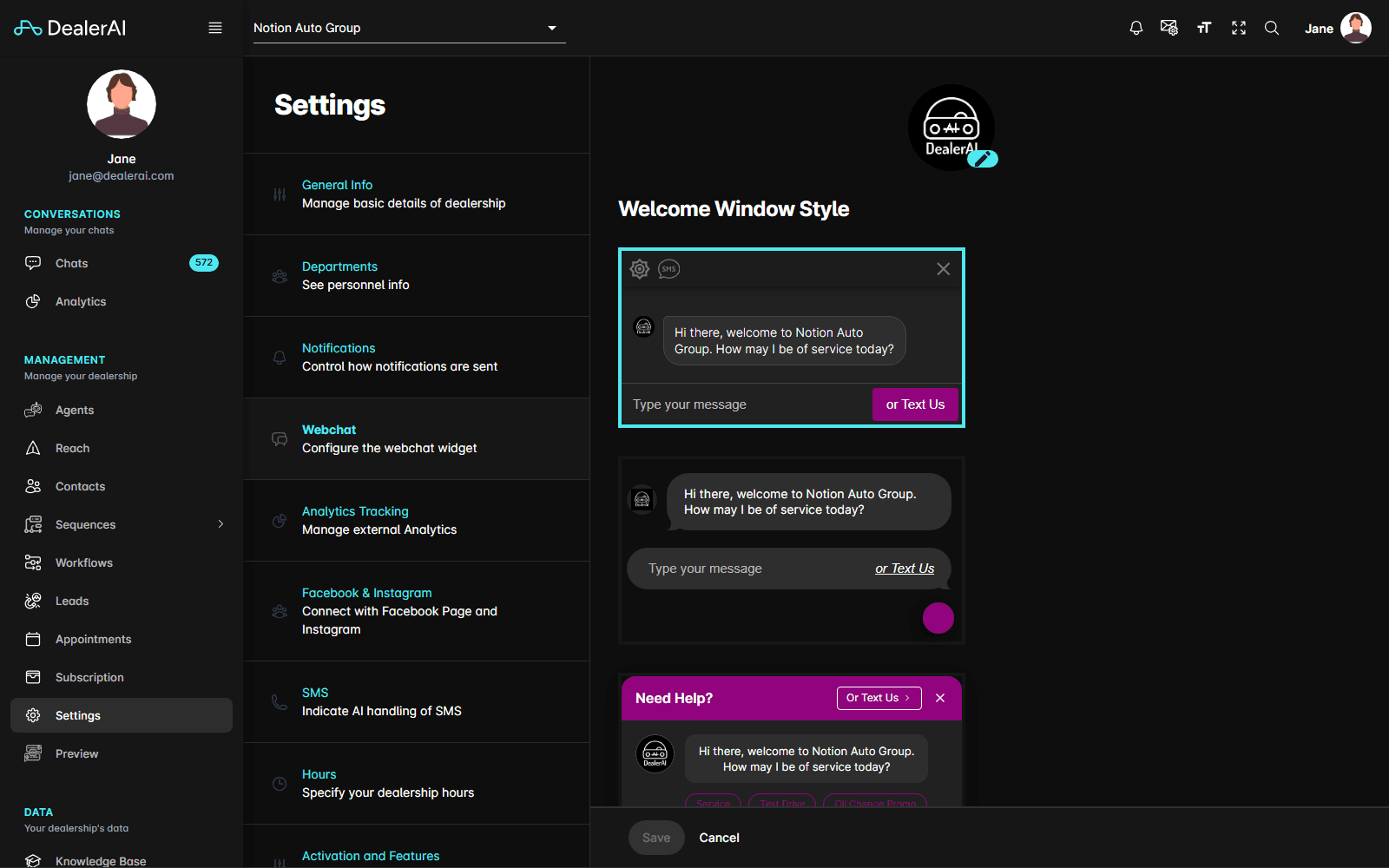
The avatar appears in the chat bubble and alongside bot messages in the conversation.
Set brand colors
In the Webchat settings, locate the Colors section.
Set the Accent Color — used for the chat bubble, send button, and header. Enter a hex value or use the color picker.
Set the Text Color — for text on colored elements. Ensure sufficient contrast.
Preview the changes in the real-time Chat Preview panel on the right.
Click Save when satisfied.
Configure the welcome message
The welcome message is what customers see before they start typing — it sets the tone and tells visitors what the AI can help with.
In the Webchat settings, find the Welcome Messages section.
Select the Locale (e.g., English, French) for multi-language support.
Type your welcome Message — this appears when the chat widget opens.
Add additional locales if your dealership serves multilingual customers.
Click Save.
Example welcome messages
| Style | Message |
|---|---|
| Friendly | "Hi! 👋 I'm here to help you find your next vehicle. Ask me anything!" |
| Professional | "Welcome to Smith Honda. How can I assist you today?" |
| Action-oriented | "Looking for a vehicle? Tell me what you need — make, model, budget — and I'll find options for you." |
Use the preview panel
The Chat Preview shows a live mockup of your widget with current settings applied. Use it to verify:
- Colors look good on both light and dark backgrounds
- Avatar displays clearly at small sizes
- Welcome message reads well and isn't too long
Webchat appearance changes affect all pages where the widget is embedded. Changes are applied immediately after saving — no code changes or redeployment needed on your website.
Tips
- Match your accent color to your dealership's primary brand color for consistency.
- Keep welcome messages under two sentences — visitors want to start chatting, not reading.
- Use a square, high-contrast image for the avatar — it renders small in the chat bubble.
- Test on mobile after saving — the widget should look good on all screen sizes.
- If you support multiple languages, set locale-specific welcome messages for each.